
When you want to print a job and you do not make any settings, the default presets are used. You only use the Smart Access to start your job.
You can see the presets that are used in the job settings section of your job.
Make sure you submit a job via one of the job submitter applications:
|
Publisher Express |
|
|
PRISMAproduce Tech |
|
|
Driver Select for Microsoft® Windows® |
Use Driver Select for Microsoft® Windows® to send a print job |
|
Driver Express for Adobe® Postscript® 3™ |
Use the Driver Express for Adobe® Postscript® 3™ to send a print job |
|
Publisher Mobile |
|
|
Publisher Express (Mobile version) |
Or submit a job via
|
LPR |
|
|
FTP |
|
|
WebDAV |
|
|
Microsoft 365 |
|
|
The home folder |
|
|
PlanWell Collaborate |
|
|
USB |
 NOTE
NOTE
This following procedure applies when you have not made settings to enable direct print. With direct print, the job will be printed immediately. For more information, see Direct print.
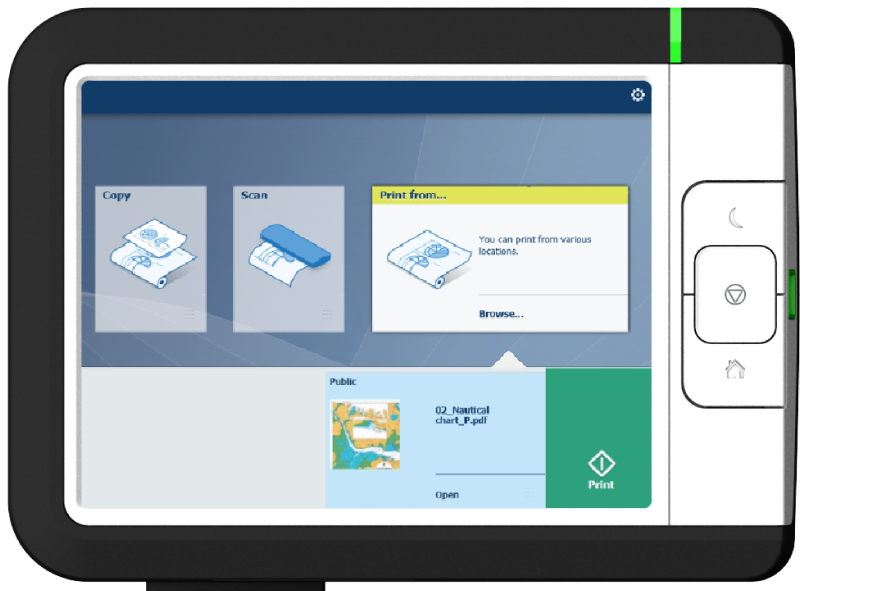
The jobs are listed in a new window.