
When you want to do a default print job:
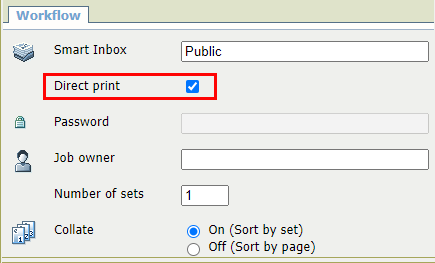
You can print with direct print.
When you print with direct print, the print job is sent to the queue immediately.
You can print without direct print.
When you print without direct print you can start the job locally at the printer.
 NOTE
NOTE
When the [Preferences] - [System defaults] -[Job management] - [Override destination of print jobs] is set to [Yes, send only to Smart Inbox], you cannot print directly and you have to start the print job at the printer. When you want to print with direct print, you must change this setting in WebTools Express.
[Direct print] and [Password print] are mutually exclusive.
For more information on how to submit a print job via Publisher Express see Use Publisher Express to send a print job.
|
Step |
Action |
|---|---|
|
1 |
Send a job to the printer via one of the job submitters and select "direct print" in the job ticket. Usually via Publisher Express in WebTools Express. |
|
2 |
Go to the printer to collect your print. |
|
Step |
Action |
|---|---|
|
1 |
Send a job to the printer and select the preferred Smart Inbox as a location, via one of the job submitters. |
|
2 |
Go to the printer and open your Smart Inbox, via the Smart Access on the user panel. |
|
3 |
Select your job in the Smart Inbox. |
|
4 |
Tap the green button to print your job. |