
Publisher Mobile is an application that enables you to easily send a print job to your printer, via your iPhone, iPad, or Android device.
A user can plot all PDF*, PLT (HPGL1/2), TIFF, JPEG and DWF* files.
 NOTE
NOTE
* Supported file types can vary depending on your system and active licenses.
Download Publisher Mobile from the Play Store for Android devices or the App Store for iOS devices.
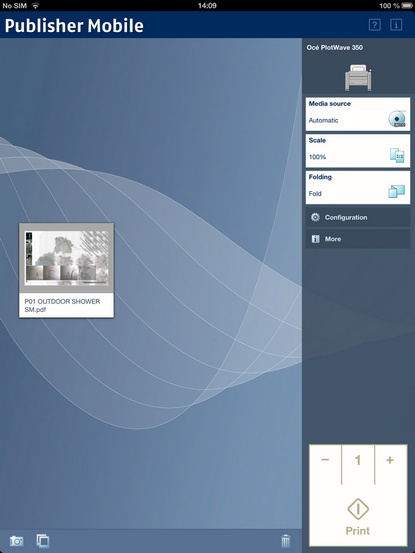
Add a printer to Publisher Mobile
|
Step |
Action |
Remarks |
|---|---|---|
|
1 |
Open Publisher Mobile on your mobile device. |
|
|
2 |
Tap the printer button. |
Publisher Mobile detects the compatible printers that are available in your network. |
|
3 |
The detected printer, indicated with a "Connection" icon, is added to your printer list. |
If your printer is not detected, you can add it manually. Tap the "Add" printer button. |
|
4 |
From the printer list, select your printer. |
|
|
5 |
Tap the "Configure" icon next to the printer name. |
The printer configuration window opens. |
|
6 |
Enter the IP address or hostname of the printer |
|
|
7 |
Add the settings for the printer. |
|
|
8 |
Save the settings. Your printer is added. |
NOTE
You can also open WebTools Express. Tap the hyperlink in the configuration window. This is useful to: -know the printer status -enter accounting information -see your Smart Inbox -see if there is an error. |
Send a print job from Publisher Mobile
|
Step |
Action |
Remarks |
|---|---|---|
|
1 |
Open the file you want to print in Publisher Mobile. |
|
|
2 |
Select your printer. |
|
|
3 |
Define the print settings you need. |
Main settings you can select:
|
|
4 |
Indicate the number of copies. |
|
|
5 |
Tap the green button |
Your job is sent to the printer. |