
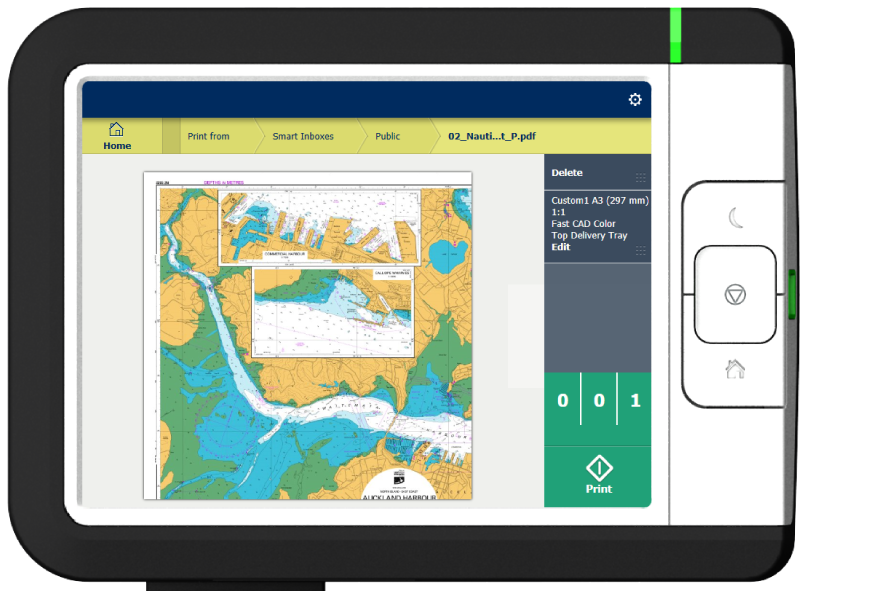
The multi-touch user panel offers a detailed preview of your job. Touch the preview thumbnail to access the preview window.
 NOTE
NOTE
Password-protected jobs appear with a lock icon instead of the preview thumbnail and cannot be viewed, edited, or printed by default. Enter the correct password to access the job.
Sometimes a complex job cannot be previewed. In that case a crossed out eye icon is displayed instead of the preview thumbnail.
|
Component |
Function |
|---|---|
|
Job preview |
You can pan the image to see it in more detail. You can shift between the various job files that are part of one location. Swipe left or right to view the other job files. Tap the Edit tile in the job pane to open the preset window. In the preset window, tap the View tile to go back to the preview window. NOTE
If you have a multi-page job, you can only view the first page. |