
Presets and templates help you to submit jobs quickly and easily. Advanced settings help you to fine-tune the settings of your job, and give access to all settings.
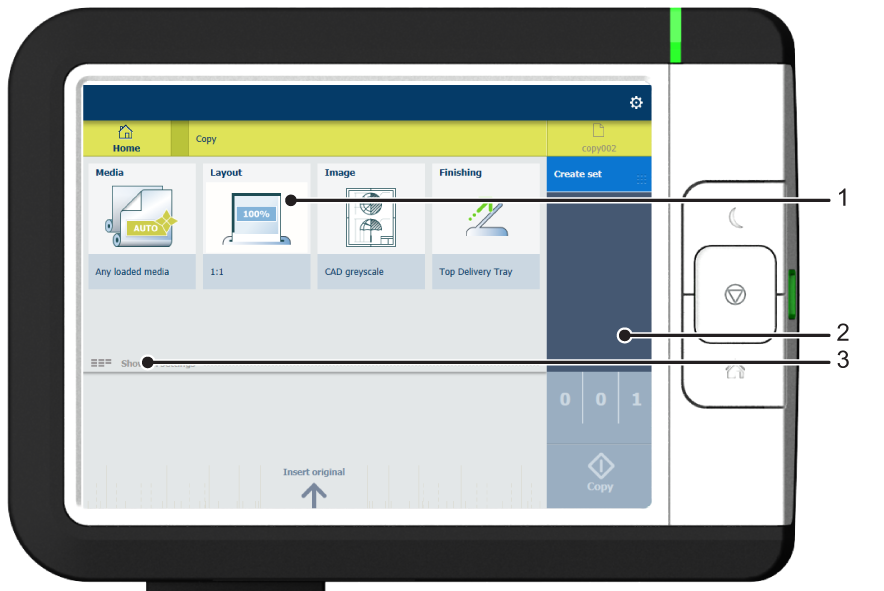
When you tap the copy tile in the home screen, a window with copy presets and advanced settings opens. When you tap the scan tile, the templates are visible in the Smart Access. When you tap the scan tile again, the window with the advanced settings opens. When you tap the print tile and tap the settings of a listed job, the window with print presets and advanced settings opens.
|
No. |
Component |
Function |
|---|---|---|
|
1. |
[preset tiles] |
The preset tiles show the default settings for your job.
|
|
2. |
[job pane] |
The [job pane] helps to manage jobs.
|
|
3. |
[Show all settings] (Advanced settings) |
When you tap on [Show all settings], a list with all the advanced settings opens. For Scan, the advanced settings are already visible.
|