
The default screen of the ClearConnect user panel is the home screen.
From the home screen you can manage jobs and enter the system menu.
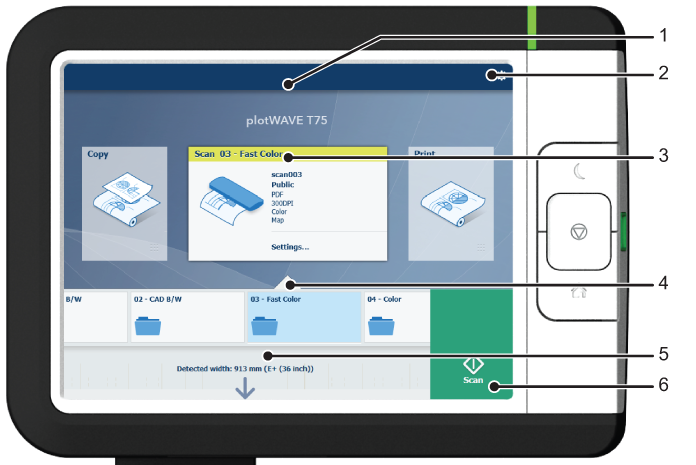
|
Nr |
Component |
Function |
|---|---|---|
|
1. |
[dynamic bar] and [active job] |
In the dynamic bar you can see the system states (warming-up, cleaning etc.) and the active job when present.
|
|
2. |
[system menu] |
In the dynamic bar you can access the system menu.
|
|
3. |
[Copy tile] [Scan tile] [Print tile] |
These dynamic tiles help you to perform copy, scan, and print jobs. Select the correct tile for your job:
In Express Webtools you can hide or unhide any tile to disable or enable its workflow. |
|
4. |
Smart Access |
The dynamic Smart Access changes specifically for a print, copy or scan job and helps you to quickly start a job. |
|
5. |
[live scan view] |
The live scan view appears in the Smart Access. The view shows the width and alignment of your document, while it slides through the Smart Access. |
|
6. |
[green button] |
The green button is dynamic and appears on all screens in the bottom right corner of the display.
|