
Publisher Express is a job submitter that is integrated in WebTools Express.
 NOTE
NOTE
When you use Publisher Express to submit a print job, the maximum job size is 2 gigabyte.
|
Step |
Action |
Remarks |
|---|---|---|
|
1 |
Open the [Jobs] - tab. |
This tab displays the following.
|
|
2 |
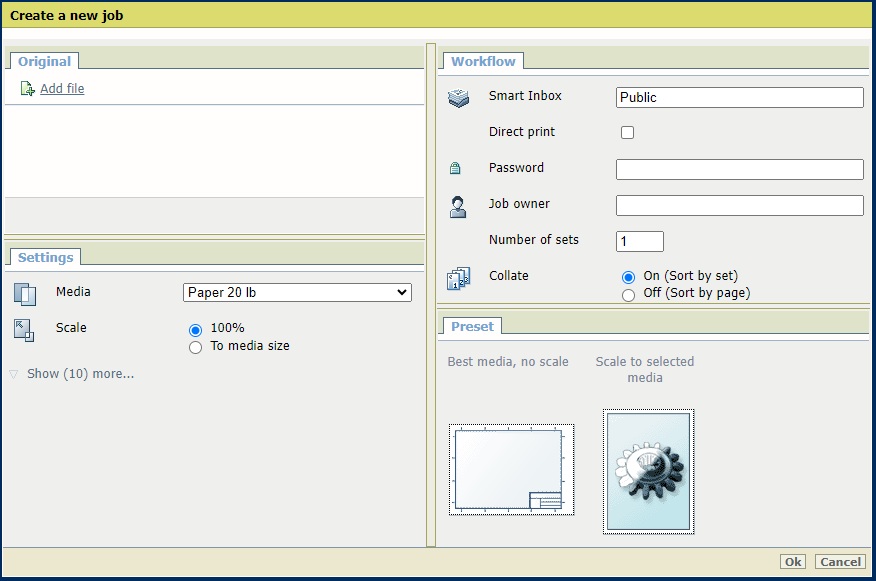
Click on [Create new job] in the Publisher Express section. |
A separate window opens. |
|
3 |
Click on [Add file] and use the Browse... button to select the file you want to print. Repeat this action to add more files to the job. |
You can only print documents with the following data formats. When you use other formats, the file cannot be sent to the printer.
|
|
4 |
Select the [Preset] and change the [Settings] if necessary. |
Job settings that you change in Publisher Express always overrule the default settings defined in WebTools Express. |
|
5 |
In the [Workflow] section enter the name of the Smart Inbox you want to print to. |
You can easily create a new Smart Inbox when you enter a new Smart Inbox name. |
|
6 |
Depending on your configuration, you can:
|
[Direct print] and [Password print] are mutually exclusive. |
|
7 |
Click [Ok] to send the print job to the Smart Inbox. |