Loading

Make a copy and remove a specific area of an original

Introduction

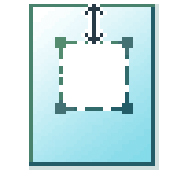
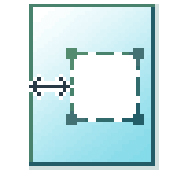
You can make a copy and delete a specific area of an original. You can use two settings: [Area to erase: width] and [Area to erase: length] to define the dimensions of the delete area. And you can use two settings: [Area to erase: X origin] and [Area to erase: Y origin], to define the relative position of the delete area on the sheet.
Procedure

  1. Feed the original face up and centered on the original feeding table.
  2. Tap the copy tile. A window with a list of presets opens.
  3. Tap [Show all settings]. A list with settings opens.
  4. Tap [Area to erase] under the [Image] preset.

    [Area to erase: X origin]

    [Area to erase: Y origin]

    [Area to erase: width]

    [Area to erase: length]

  5. Select [Area to erase: X origin], [Area to erase: Y origin], [Area to erase: width], or [Area to erase: length] and define the values for your specific area.
  6. Make your settings and tap [OK].
  7. Define the number of copies and tap the green button.