
When you have an original with a strip, you can remove the strip from your copy.
Use the option on the user panel to copy an original with a strip, and remove the strip from the copy. You can remove a strip from the top, the bottom, the left or the right side of the original.
 NOTE
NOTE
For more information on the cut size settings, see Preset category:Layout.
You can also use this setting to copy a specific area of the original. For more information, see Make a copy of a specific area of an original.

|
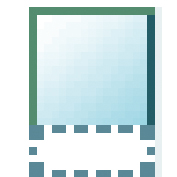
|

|

|
|
The [Top] strip |
The [Bottom] strip |
The [Left] strip |
The [Right] strip |