Introduction
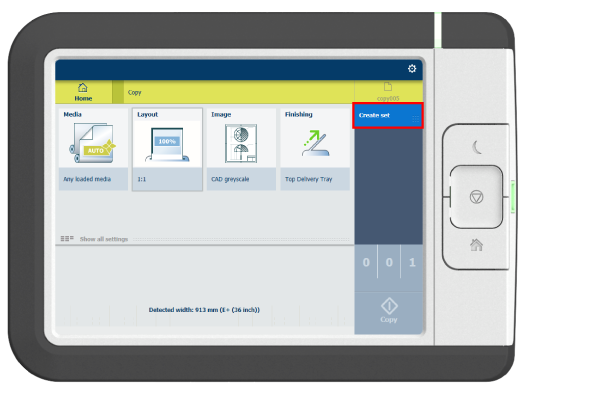
You can use the [Create set] option to make multiple scans and copy in one set.
Procedure
-
Feed the original face up and centered on the original feeding table.
-
Tap the copy tile. A window with a list of presets opens.
-
In the job pane on the right, tap [Create set].
The green button changes color and displays [Add].
-
Tap the green button to start scanning.
-
When the printer releases the original, insert the next original.
-
Tap the green button. The scan is added to the set.
Repeat this step until your set is complete.
-
Tap the [Finish set] tile to finish the set.
Results
The printer copies the set of originals.