Introduction
Driver Select for Microsoft® Windows® is a mixed raster-vector HP-GL/2 printer driver that allows you to to create, preview, print, and manage jobs for your Canon printer.
Procedure
-
Open the file that you want to print in the source application.
AutoCAD® or any other Windows application
-
From the [File] menu of the application, click [Print].
-
Select the product name of your printer in the [Printer] area of the [Print] dialog box.
-
Click [Properties].
You can define the default print job settings in WebTools Express.
-
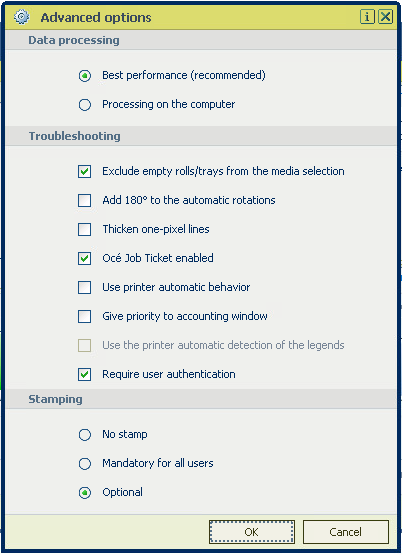
In the [Options] menu in the upper right hand corner of the screen choose [Advanced options]. Make sure a checkmark is placed in the [Océ Job Ticket enabled] box of the [Troubleshooting] section to overrule the default values for the job settings.
-
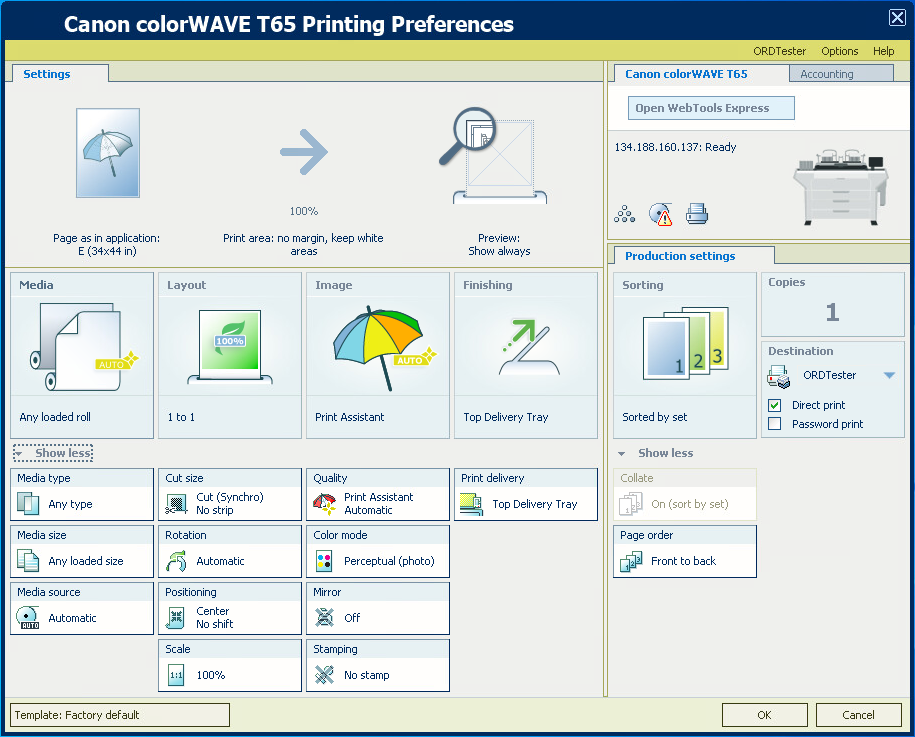
Check all tiles in the printer driver and change the settings, if necessary.
-
Click [OK] to send the print job to the [Smart Inbox] or the print queue.

 NOTE
NOTE