
PRISMAproduce Tech is a job submission application that allows you to create, preview, print, and manage jobs for the plotWAVE T75.
 NOTE
NOTE
You can download the PRISMAproduce Tech software on http://downloads.cpp.canon under the product page. Here you can also download the operation guide for more information.
Use PRISMAproduce Tech to:
Connect to the printer.
Set up the application settings to your preferences.
Check the media and toner available in the printer.
Create a job.
Submit your job to the printer.
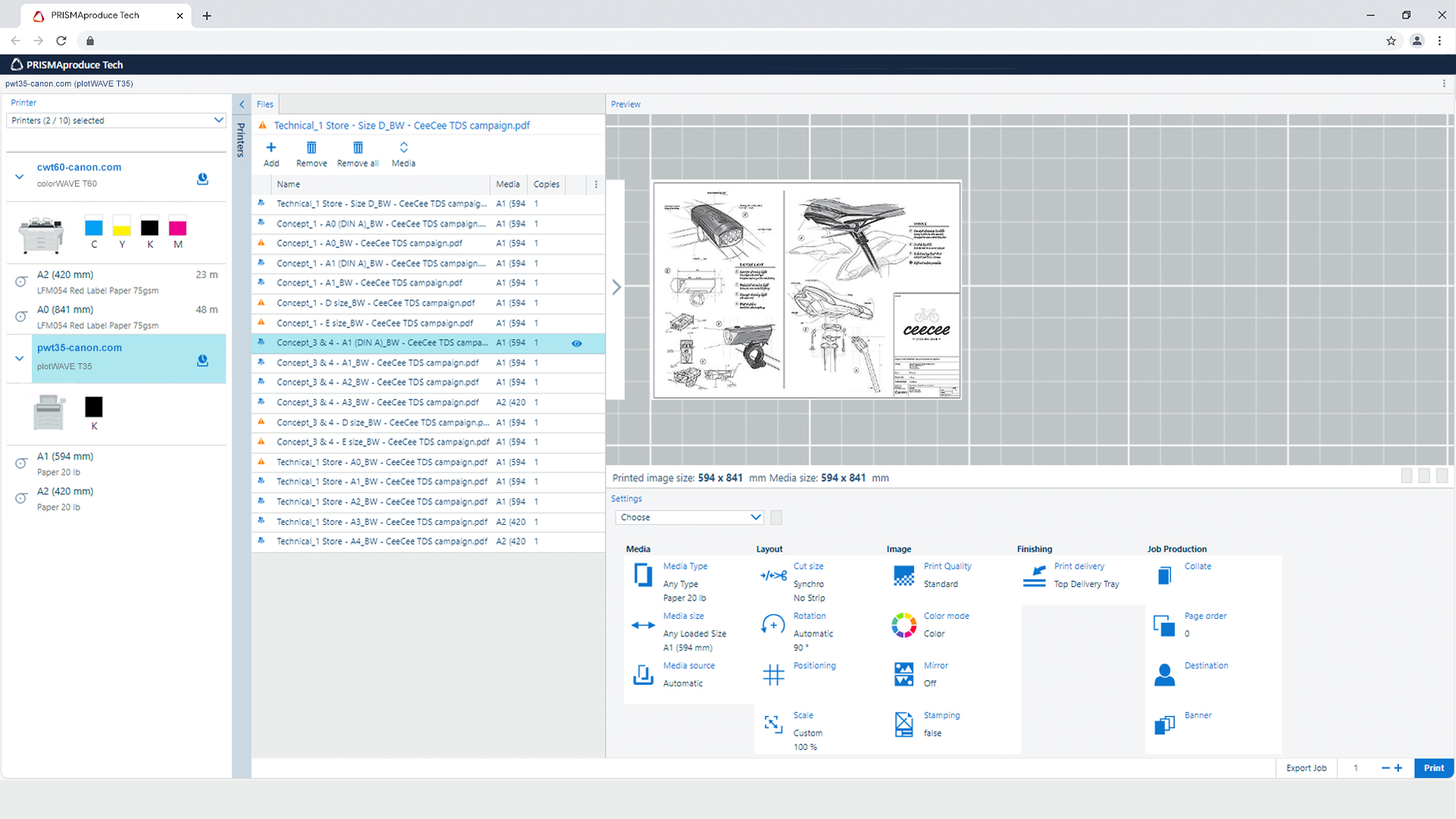
Start PRISMAproduce Tech and connect it to the printer.
The home screen opens.
In the left part of the screen, check the printer status for the available toner and media.
Select a template or create a custom template and select it.
Add documents to the job.
Select documents of the job to check or adjust the print settings.
Check the print preview.
Click on the print button, to print the job.
Track and manage a submitted job in the submitted jobs list.