
From the menu, select 'Adobe Acrobat' from the [Tools] menu. The selected page is opened in Adobe Acrobat and can be modified.
 NOTE
NOTE
The pages form a temporary file with the name PrismaPrepareExchange.pdf.
NOTE
When Adobe Acrobat is not available in the [Tools] menu, it is not available yet as an external application in PRISMAprepare. Open the PRISMAprepare Administration application and add Adobe Acrobat as external application.
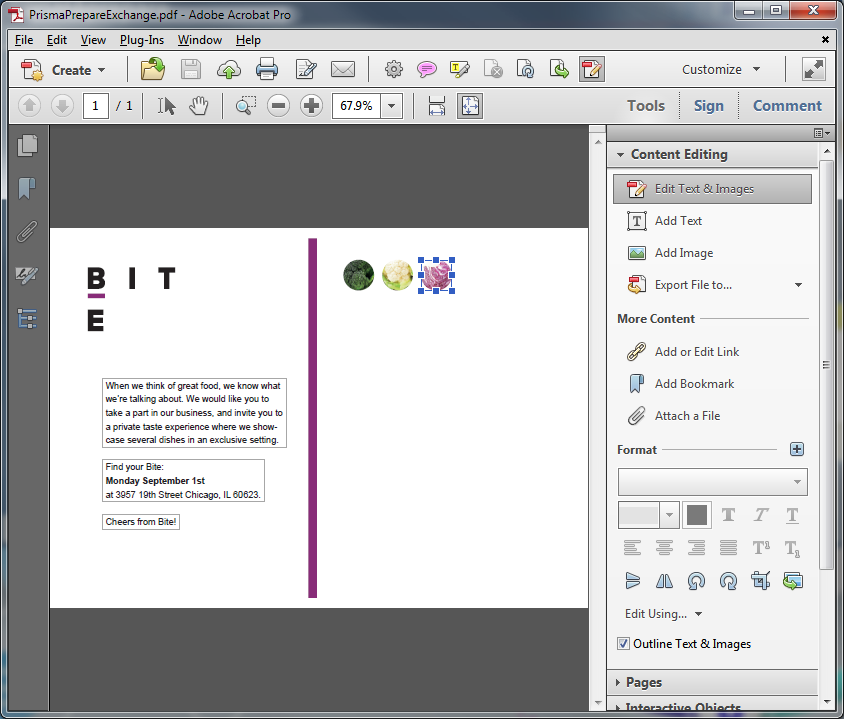
Perform your modifications in Adobe Acrobat:
Open the [Tools] pane. Select 'Edit Text & Images' in section at 'Content Editing'.
On the first page, click on of the three vegetables on the right side.
From the menu, select .
Delete the vegetable.
Close Adobe Acrobat, e.g. the PrismaPrepareExchange.pdf. A warning message pops up.
Click [Yes] to save the document PrismaPrepareExchange.pdf.
Click the [Import] button in PRISMAprepare. The changes are applied to the document in PRISMAprepare.
Save the file in the 'Participants' folder on the desktop with the name Scenario_122.pdf.
NOTE
All Windows based programmes that are able to edit the PDF format, like Adobe Illustrator or Photoshop can be configured as external application.