
An LED on the printer shows the UVgel status. The LED color indicates when you can refill each UVgel reservoir. The user interface also displays the UVgel levels. You can refill a UVgel reservoir in the printer before it is completely empty, and you can refill UVgel while printing.
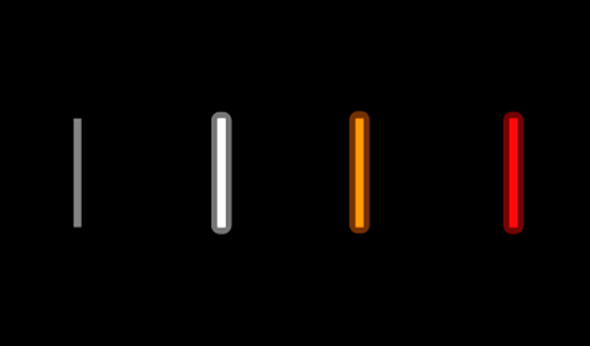
If the LED is off, you can not refill UVgel.
If the LED is white, you can add at least one UVgel box.
If the LED is orange, the UVgel reservoir is almost empty. It is recommended to refill UVgel.
If the LED is red, UVgel reservoir is empty. You must refill UVgel to continue printing.
Use Colorado XL-series prescribed:
Microflex gloves for handling UVgel
Safety glasses
Lint free cloths
 CAUTION
Wear gloves when contact with ink or maintenance materials is possible. Gloves should always overlap sleeves. Follow the ink related Safety Data Sheets (SDS) guidelines carefully in order to ensure maximum safety.
|
1 |
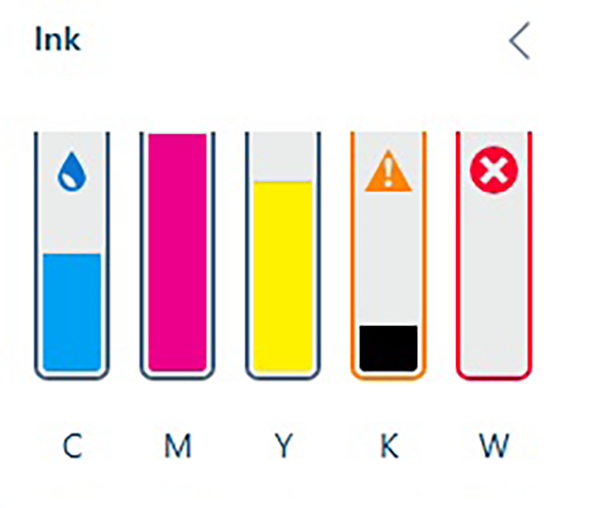
Check which UVgel colors you can refill. On the user interface, go to [System overview], then [Ink] to check the status of the UVgel levels.
|
|
|
2 |
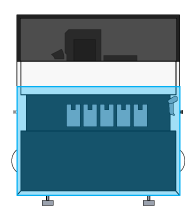
Go to the short side of the printer where the UVgel boxes are located. |
|
|
3 |
Put on the Colorado XL-series approved gloves and safety glasses. |
|
|
4 |
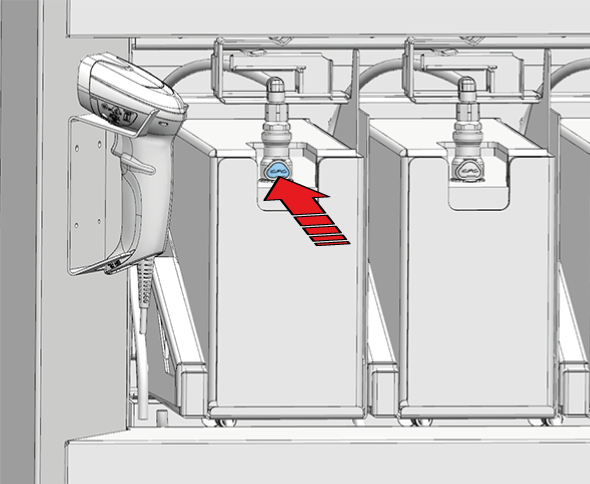
Pinch the connector to disconnect the empty UVgel box from the printer |
|
|
5 |
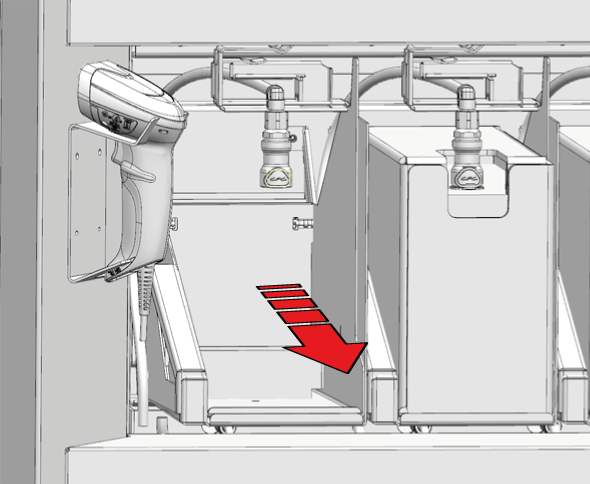
Lift the UVgel box out of its slot. |
|
|
6 |
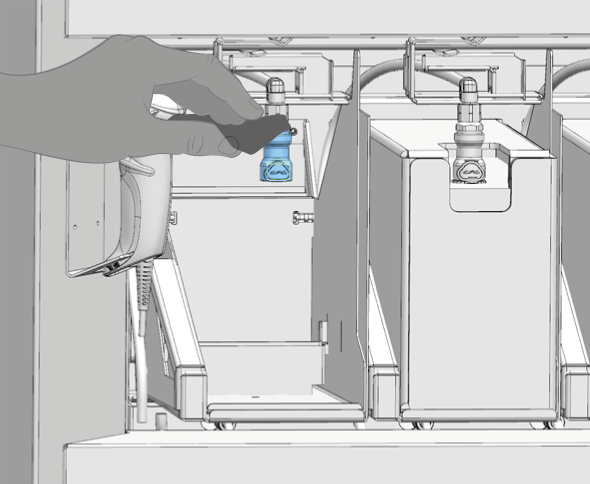
If theUVgel box connector is polluted, take a lint free cloth and clean the inside of the connector. |
|
|
7 |
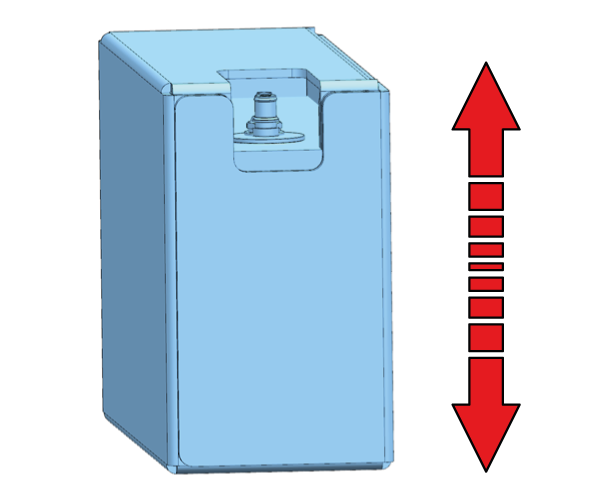
Take a new UVgel box of the same color and shake it well for at least 10 seconds. You must shake a white UVgel box for at least 30 seconds. |
|
|
8 |
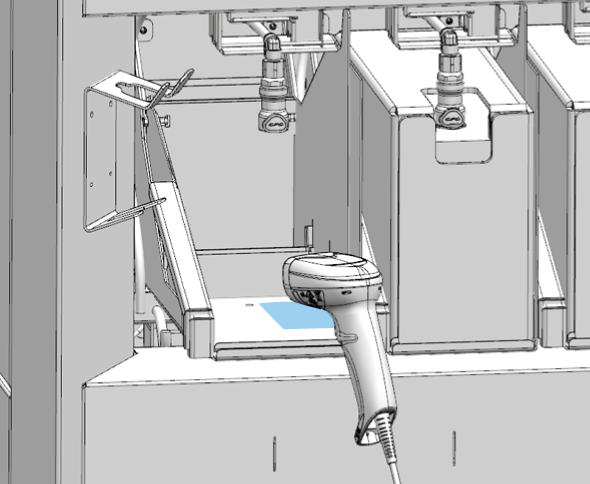
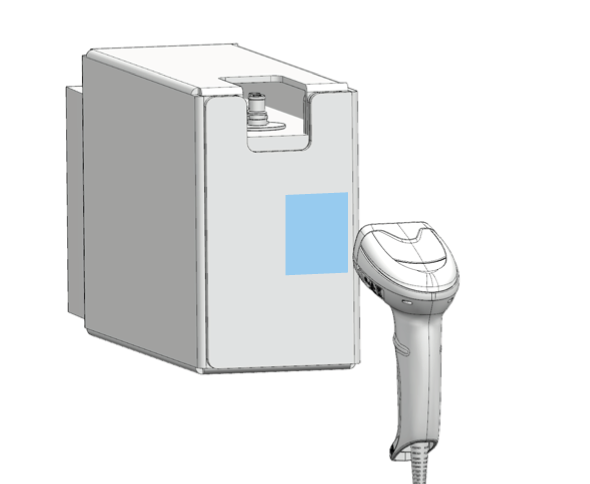
Scan the QR code of the slot where you have to place the UVgel box. |
|
|
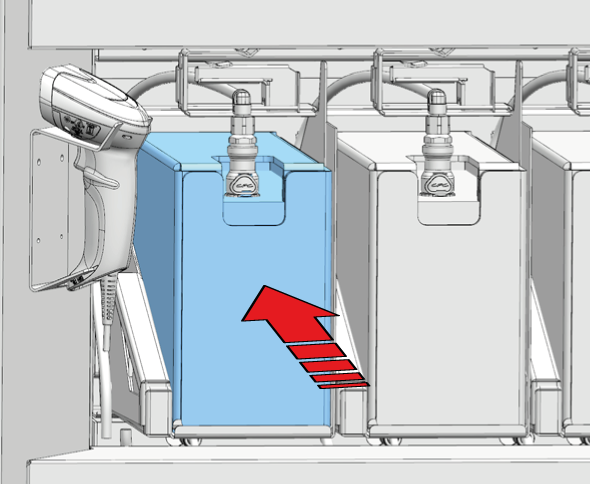
9 |
Place the new UVgel box into its slot. |
|
|
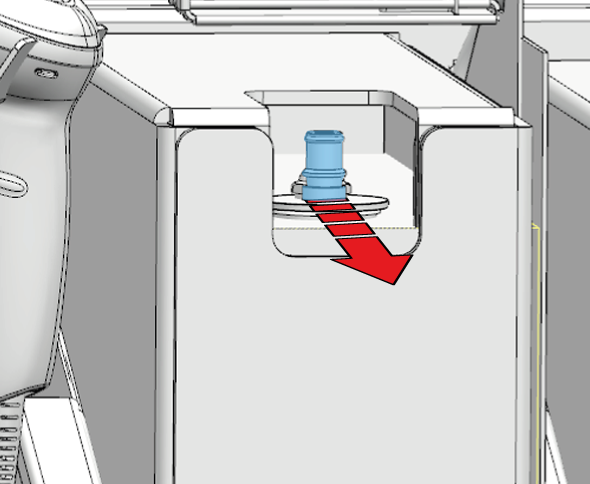
10 |
Twist the cap off the UVgel box. |
|
|
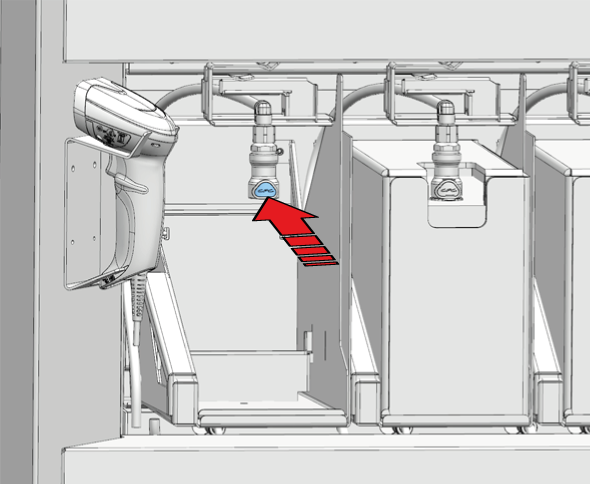
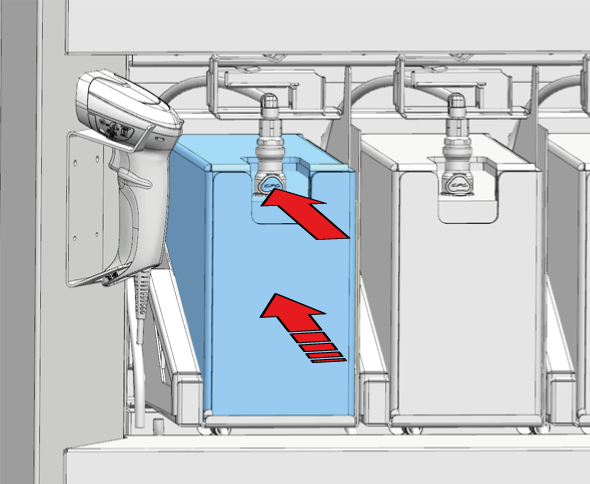
11 |
Connect the UVgel box to the printer. Pinch the connector, then place it on the opening of the UVgel box to connect it to the printer. |
|
|
12 |
Scan the QR code of the new UVgel box. |
|
|
13 |
The UVgel will start to empty into the UVgel reservoir in the printer.  NOTE NOTE
|
|
|
14 |
Separate the UVgel bag from the box. Dispose the gloves, cloths and UVgel bag as chemical waste according to local regulations. Dispose the box as paper waste. |
 means you can add at least one
  means it is recommended to refill
  means you must refill