
Please read the steps below carefully to make sure you make optimal use of your PRISMA Home Applications and Tools.
In order to be able to use your continuous feed printers within any PRISMA Home application, you need to register them in PRISMA Home.
In the Service menu, select [Change user].
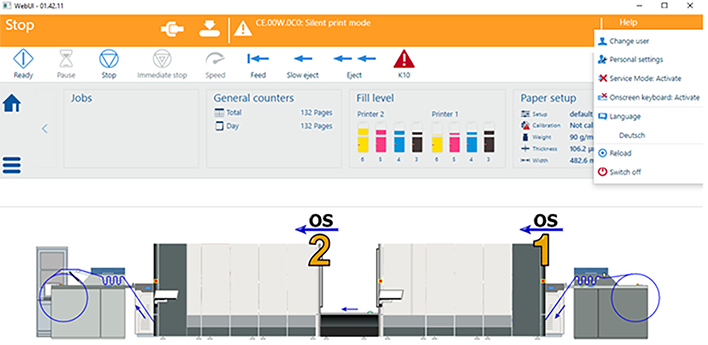 [Change user]
 Log in as Service.
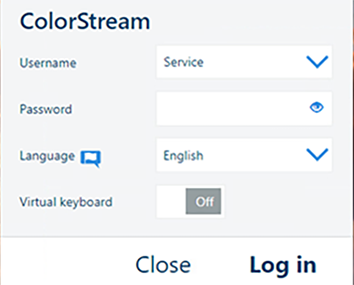 Login
LoginNavigate to [On Remote Service].
Open the [Customer Proxy] tab and ensure that the proxy is set correctly.
 NOTE
NOTE
Continuous feed printers need to be configured with a static IP address. Dynamic IP addresses are not supported.
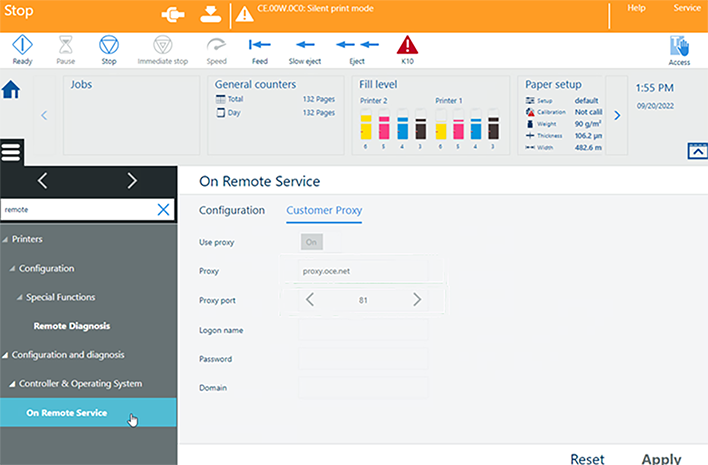 Proxy
ProxyActivate the service mode. In the Service menu, select [Service Mode: Activate].
[Service Mode: Activate] In the printer menu, navigate to .
Select the environment to which the printer will be added. Click the [Apply] button to save the changes.
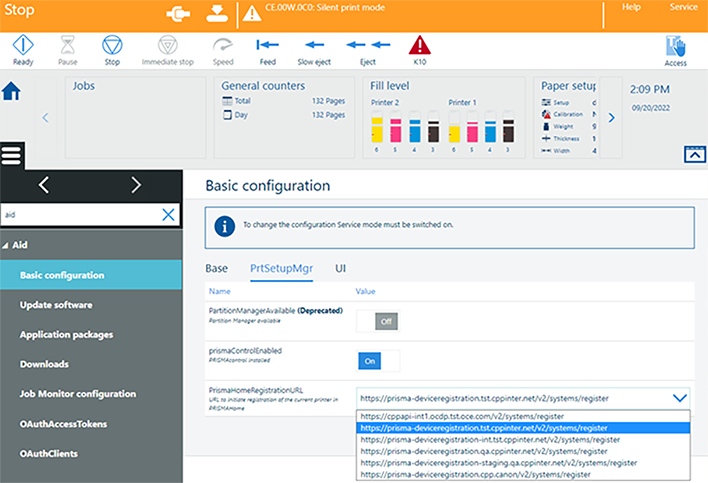 Basic configuration
Deactivate the service mode. In the Service menu, select [Service Mode: Deactivate].
Navigate to .
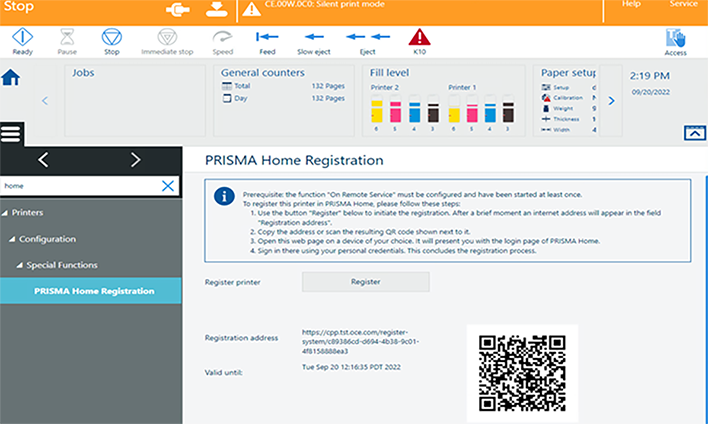 PRISMA Home registration
Click the [Register] button. After a few moments, a link will appear in the [Registration address] field.
Copy the link to the browser or scan the QR code. The login page of PRISMA Home will open.
Log in to PRISMA Home. Now your printer is registered in PRISMA Home.
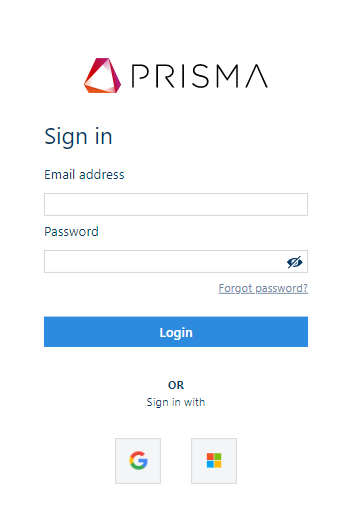 PRISMA Home login