
When you have a cloud service administrator account, you can register a printer for the cloud service applications. You can only register a printer from the Settings Editor of the same printer.
After you have registered the printer, the printer can be used in all cloud service applications.
 NOTE
NOTE
When you log in for the first time, your cloud service administrator account is added to the cloud service administration portal user lists.
Open the Settings Editor and go to: .
 [Cloud service] tab
Click [Register printer for cloud service].
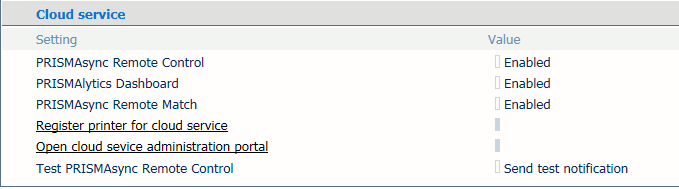 Cloud service settings
Confirm that this printer must be registered.
The cloud service administration portal is opened.

The printer series and serial number of the printer are displayed.
Enter the display name of the printer. This name is used to identify the printer in the cloud service applications.
 Register printer
Click [Add] to register the printer.
NOTE
A printer can only be registered for one cloud service administration site. If the printer is already registered for another cloud service administration site, you are asked if the printer must be registered for the current cloud service administration site instead.
Now, information is shown about the printer. This information shows if all required licenses are available and when the printer has sent the latest printer data to the applications.
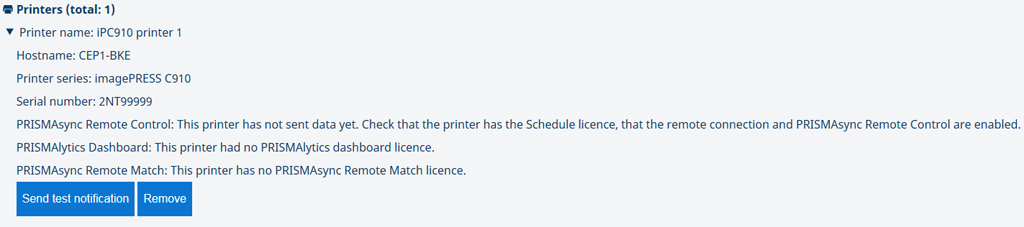 Information on connection with cloud service
Click [Log out] to leave the portal.
 Log out
 IMPORTANT
Be aware that the Google or Microsoft account you used can remain active in your browser. Go to the Google or Microsoft preferences to adjust your account settings.