
Getting started for the first time with PRISMAlytics Dashboard & PRISMAlytics Accounting involve a few preparation steps. The purpose of this chapter is to guide you step by step through the actions needed in order to have a fully functioning PRISMAlytics Dashboard & PRISMAlytics Accounting.
This is what you need to do to get started:
Register the printer(s) that you are going to use for PRISMA Home.
There are two ways to register your printers.
a native (direct) connection using the PRISMA Home internal connector
PRISMAlytics Dashboard requires the use of the internal connector for all PRISMAsync-driven devices and all the continous-fed devices
Cloud Proxy connection for other printers
For more information on the printer registration, refer to the sections below.
Invite other users to create accounts in your tenant in PRISMA Home.
When you send the invitation, you have to select what type of user role to assign for the PRISMA Home.
.
Assign a role to each registered user in PRISMAlytics Dashboard.
Video: Managing users
This is what you need to do to get started:
PRISMA Home lets you use a device in two separate ways. Some devices support a connection using an internal connector. Or you can let the Cloud Proxy handle the connection.
PRISMAlytics Accounting devices need a Cloud Proxy connection :
Setup Cloud Proxy and add devices
Register devices in PRISMA Home with Cloud Proxy
Cloud Proxy will let you bridge the network connection between PRISMA Home and your devices, and offer a simple way to manage and troubleshoot them.
 NOTE
NOTE
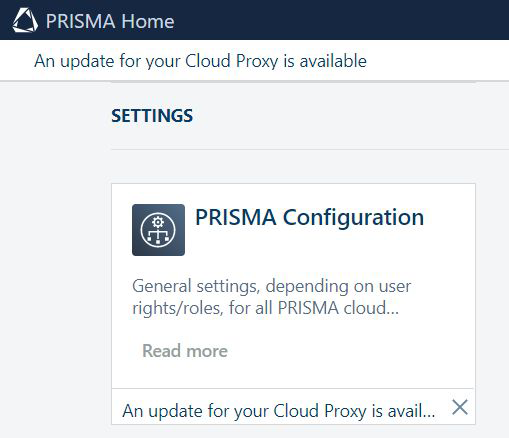
It is important to keep the Cloud Proxy updated. When a new version is released, a notification will be shown in the header of the page, as well as in the card for starting the [Configuration].
Allow the applications to use the newly added device(s).
Invite other users to create accounts in your tenant in PRISMA Home.
When you send the invitation, you have to select what type of user role to assign for the PRISMA Home portal.
.
Two roles are available in PRISMA Home:
[Employee], which is an employee of the print company.
The employee is not able to change settings.
[Administrator] which is the administrator of the print company.
The administrator can change settings and can perform any of the available actions.
This is what you need to do to get started with PRISMAlytics Accounting, after you already passed the steps above:
Assign a role to each registered users in PRISMAlytics Accounting.
NOTE
The pool of PRISMA Home users is different from the users you can find in the user-related reports. The reports will only show data about users which printed on your configured devices.
Configure PRISMAlytics Accounting to retrieve data from the devices.
You can do this manually whenever you need to update the data, or automatically.
Process your print shop data into reports.
Video: PRISMAlytics Accounting: Intro: reports, personal data
Instruct PRISMAlytics Accounting to generate your reports automatically.
Video: PRISMAlytics Accounting: Generating reports automatically
In order to obtain data from the DFE, you need to make sure to enable a series of settings inside the DFE.
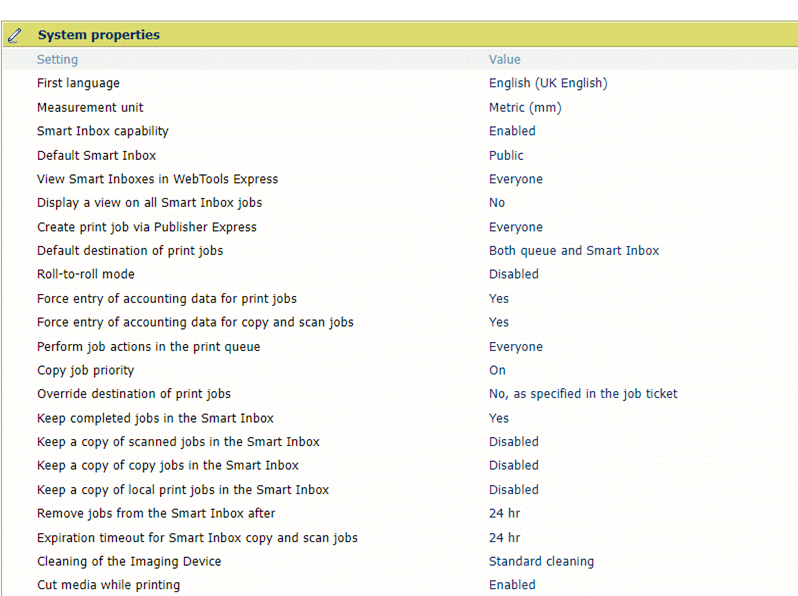
Both settings need to be "Yes":
[Force entry of accounting data for print jobs]
[Force entry of accounting data for copy and scan jobs]
This is what you need to do to get started with PRISMAlytics Dashboard & PRISMAlytics Accounting:
After you added and configured your devices, prepare the PRISMAlytics Dashboard & PRISMAlytics Accounting environment:
For each device registered via the Cloud Proxy, you need to make sure that Cloud Proxy and the device are set to the same timezone. Cloud Proxy should have its own stable clock and should not rely on online time synchronization services. Using the wrong setup can result in inaccurate data, such as an inflated count of clicks and consumables.
Please remember the printer state is queried every minute, which means that some intermediary states could be overlooked.