
You can perform the following operations on document level:
Add
 blank pages
Remove  pages
Change the order of the pages
Copy/paste pages
 /

Manage the sections of the document

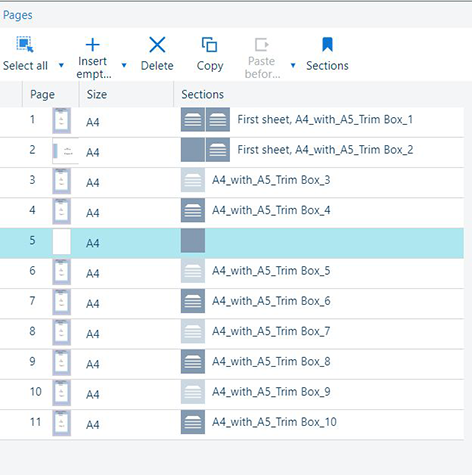
Use the drag and drop mouse gesture to change the order of the pages as you need.
The page selector buttons are stacked on top of each other, the most recent one remains selected..
Press the
 button to change the active button.
 [Select all]
 [Select first page]
 [Select last page]
[Select first page of every section]
This entry is only visible if the attachment already contains sections.
[Select last page of every section]
This entry is only visible if the attachment already contains sections.
The blank page insert buttons are stacked on top of each other, the most recent one remains selected.
Press the
button to change the active button.
[Insert empty page before current page]
[Insert empty page after current page]
The
[Delete] removes all the selected pages. A confirmation message-box will pop up, asking you to confirm the operation.
Press the
[Copy] button to have the entire selection copied to the app's clipboard.
[Paste after current page]
[Paste before current page]
Use the [Sections] button to open the [Sections] dialog.
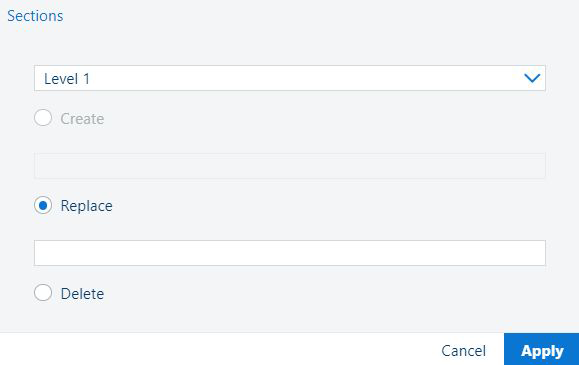
You can:
[Select section level]
Pick the level of the new section to be created.
Sections are structured in a hierarchical way: if the document contains no sections, you can only create a level 1 section.
The [Pages] table contains the [Sections] icon indented based on the level of the section.
[Create] a new section, for which you can specify a name.
[Replace] or [Delete] - only if you have a section selected.