
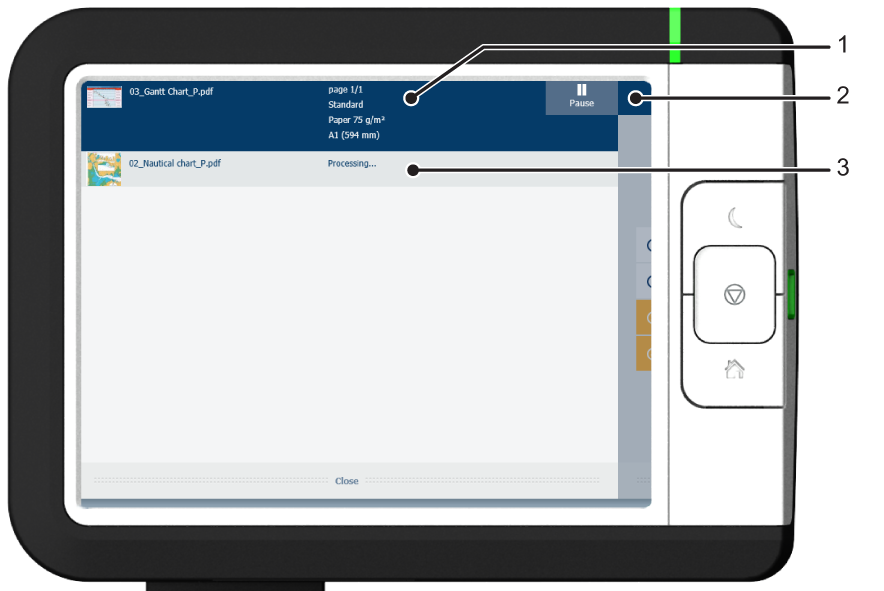
The dynamic bar is located in the upper part of the home screen on the user panel display. The dynamic bar consists of the job status with the job queue, the printer status, and the system menu.
|
No. |
Component |
Function |
|---|---|---|
|
1. |
job and printer status |
View information on the job and the printing system, such as:
|
|
2. |
system menu |
Tap the system menu thumbnail to access the system menu. |
|
3. |
job queue |
Tap on the active job to open the job queue window.
|
|
No. |
Component |
Function |
|---|---|---|
|
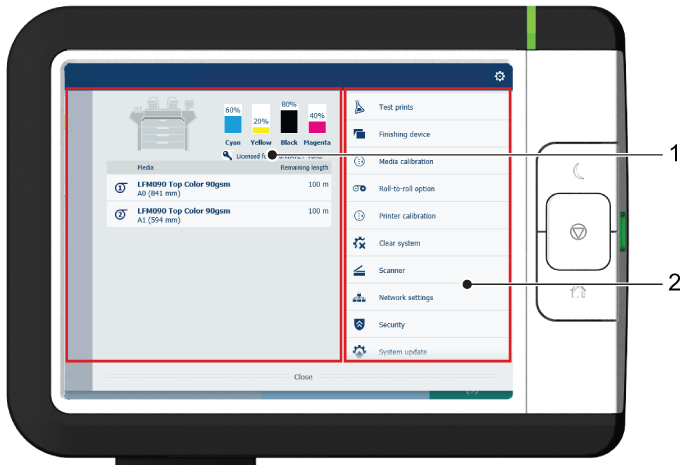
1. |
Printing system, media, and toner |
|
|
2. |
[setup menu] |
The [setup menu] gives general information on the printer. In the list you can get access to:
|
|
*Remaining roll length |
Explanation |
|---|---|
|
'Unknown' |
Not enough meters of the roll have been printed to estimate the remaining roll length. |
|
'0' |
The remaining roll length is 0, or no media is loaded. |
|
'<5 m' or '<16 ft' |
The remaining roll length is below or equal to the threshold ('5 m' or '16 ft'). |
|
a value in meter or in feet |
The remaining roll length is above the threshold ('5 m' or '16 ft'). |