
Parts of the printer that perform automatic maintenance can become polluted with UVgel. You must clean these parts to ensure optimal performance of the printer. You must clean the following parts of the maintenance unit:
Purge tray
Drip tray
Funnel of the maintenance container
Calamity tray
Cleaning cassette area
Printing cassette area
Surroundings of the maintenance components
Use Colorado XL-series prescribed:
Microflex gloves for handling UVgel
Lint free cloths
Cleaning liquid (IPA)
 CAUTION
Always wear protective gloves when opening the covers of the machine.
CAUTION
Wear gloves when contact with ink or maintenance materials is possible. Gloves should always overlap sleeves. Follow the ink related Safety Data Sheets (SDS) guidelines carefully in order to ensure maximum safety.
 NOTE
NOTE
Keep the gloves on for all sections of the procedure.
|
1 |
On the user interface, tap on [Maintenance], then [Clean the maintenance unit]. |
|
|
2 |
Put on the Colorado XL-series approved gloves. |
|
|
3 |
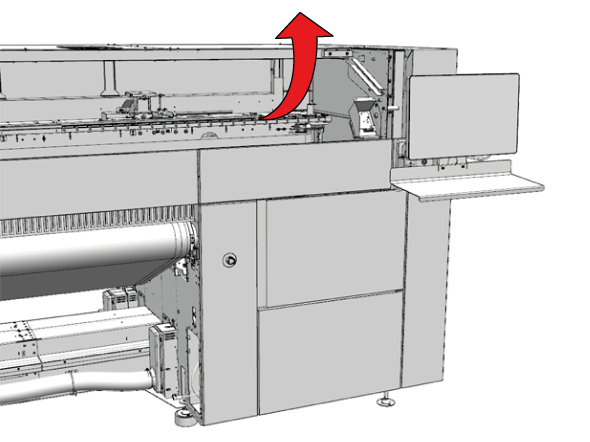
Go to the output side of the printer and open the top cover. |
|
|
4 |
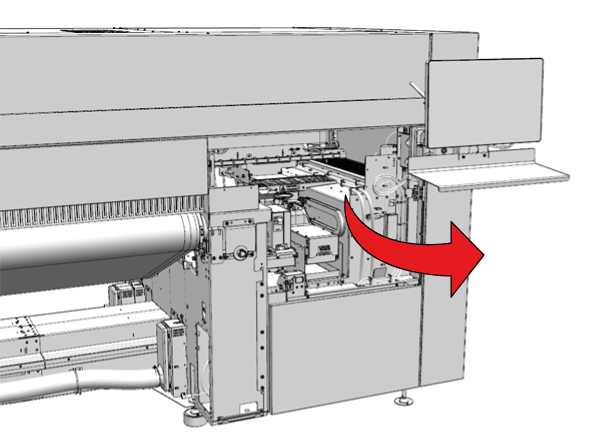
Open the maintenance door. |
|
|
1 |
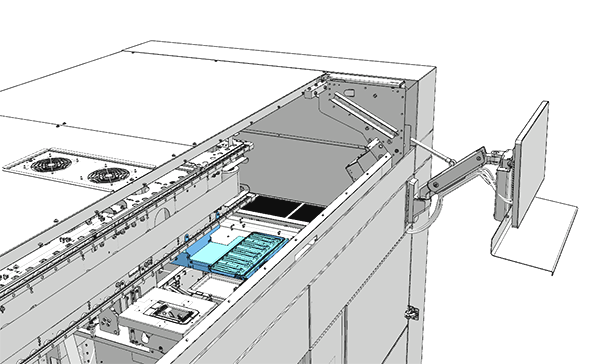
Locate the purge tray in the maintenance area. |
|
|
2 |
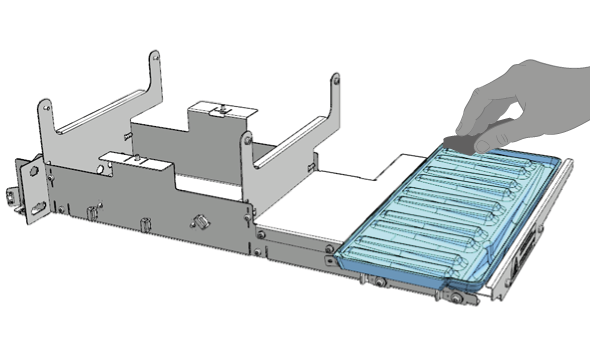
Dampen a lint free cloth with the cleaner IPA and wipe as much UVgel off the purge tray and the cover behind it as possible. Use another cloth if necessary. NOTE
Do not use excessive force when you clean the purge tray. |
|
|
1 |
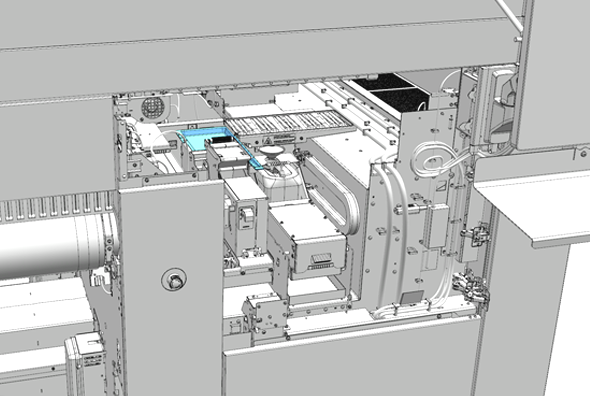
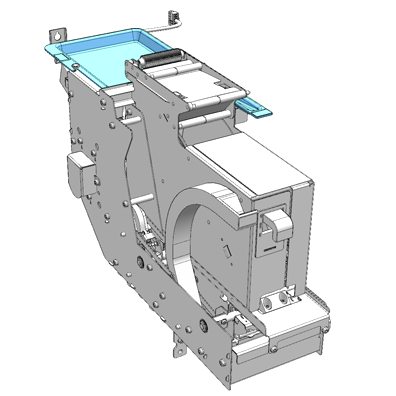
Locate the drip tray in the maintenance area. The drip tray is attached to the clean tray unit, above the cleaning cassette. |
|
|
2 |
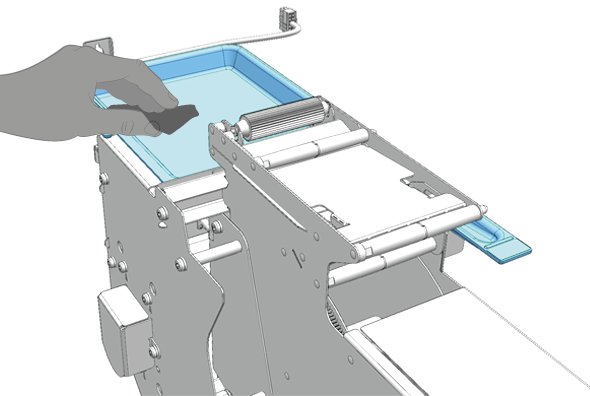
Dampen a lint free cloth with the cleaner IPA and clean the drip tray until you have removed as much UVgel as possible. Take out the drip tray if necessary. |
|
|
1 |
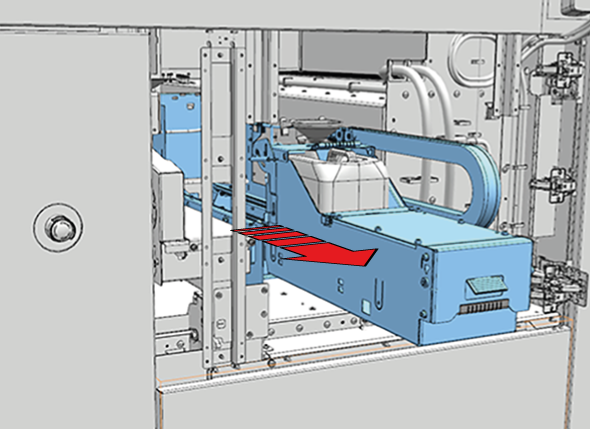
Locate the maintenance drawer and pull the green lever carefully to slide the maintenance drawer to the front. Make sure to extend the drawer completely. |
|
|
2 |
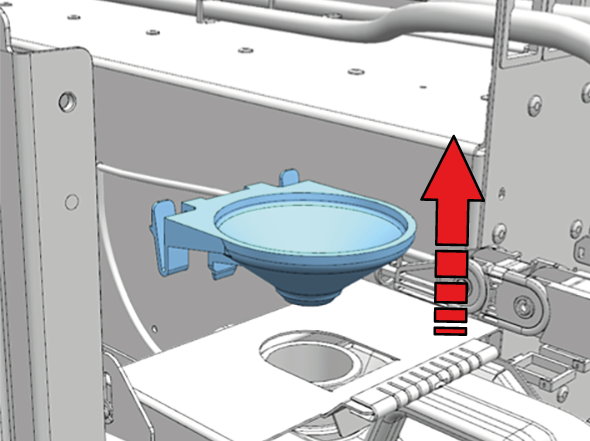
Take the funnel out of the metal holder. |
|
|
3 |
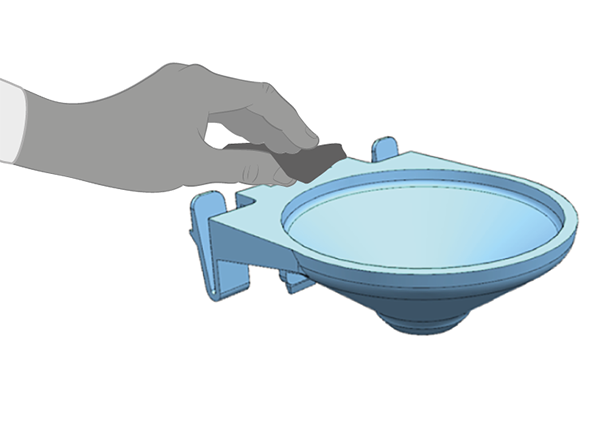
Use a lint free cloth with cleaner IPA to clean the funnel. If the funnel is too congested and cannot be cleaned, you must replace it. |
|
|
4 |
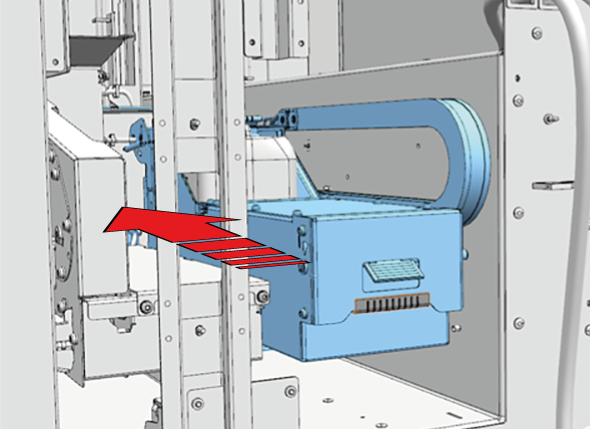
Push and close the maintenance drawer. |
|
|
1 |
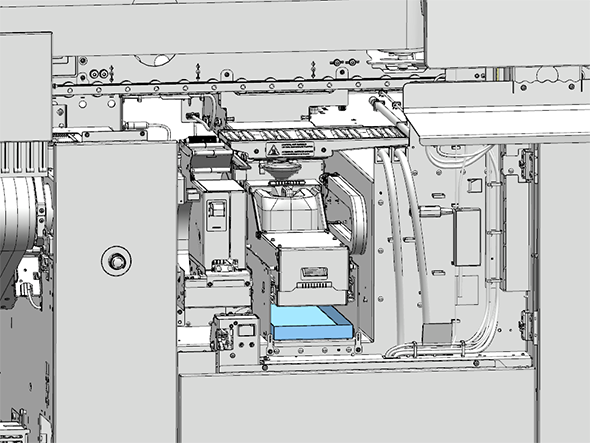
Locate the calamity tray underneath the maintenance container. |
|
|
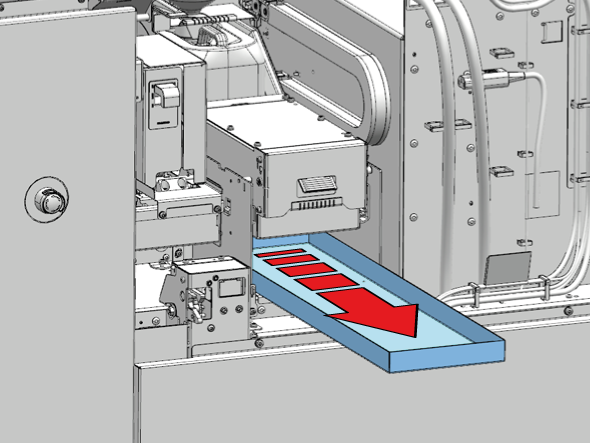
2 |
Pull out the calamity tray. |
|
|
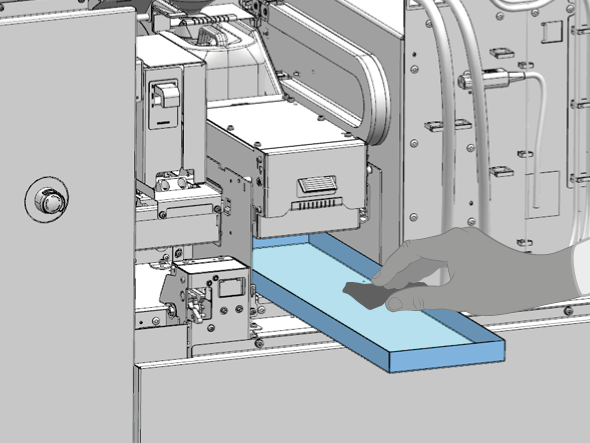
3 |
Dampen a lint free cloth with the cleaner IPA and clean the calamity tray. |
|
|
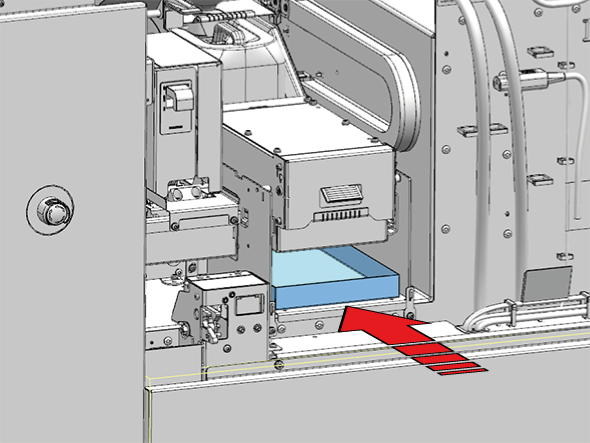
4 |
Push the calamity tray back into the printer. |
|
|
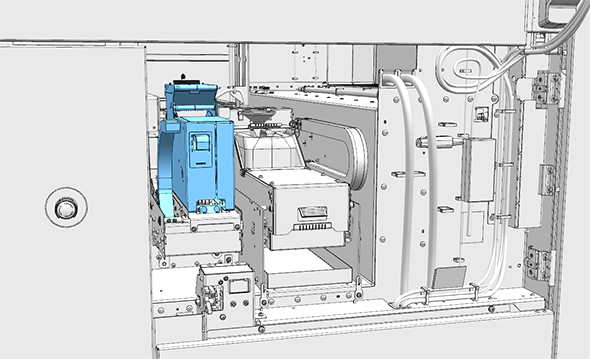
1 |
Locate the cleaning cassette. |
|
|
2 |
Dampen a lint free cloth with the cleaner IPA and clean any pollution on the cleaning cassette and its surroundings. |
|
1 |
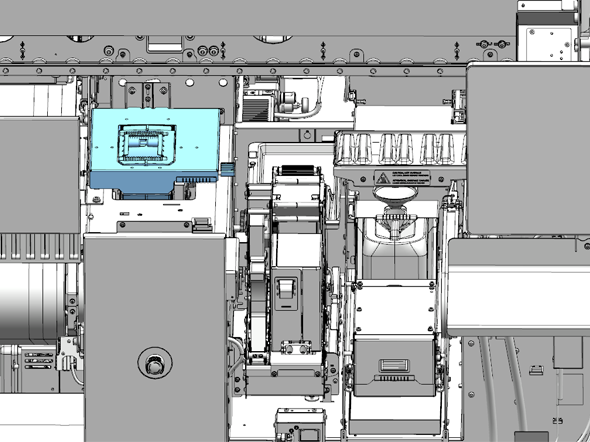
Locate the printing cassette and its cover. |
|
|
2 |
Dampen a lint free cloth with the cleaner IPA and clean any pollution on the cleaning cassette, the cover and its surroundings. |
|
1 |
Check for any remaining pollution in the maintenance unit. If there is any pollution left, dampen a lint free cloth with the cleaner IPA and clean it. |
|
|
2 |
Dispose the gloves and cloths as chemical waste according to local regulations. |
|
|
3 |
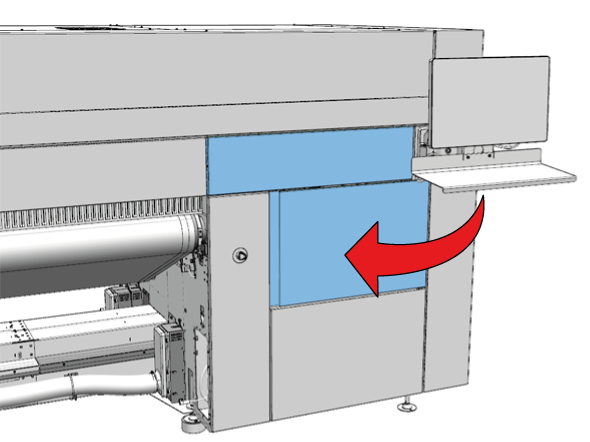
Close the maintenance door. |
|
|
4 |
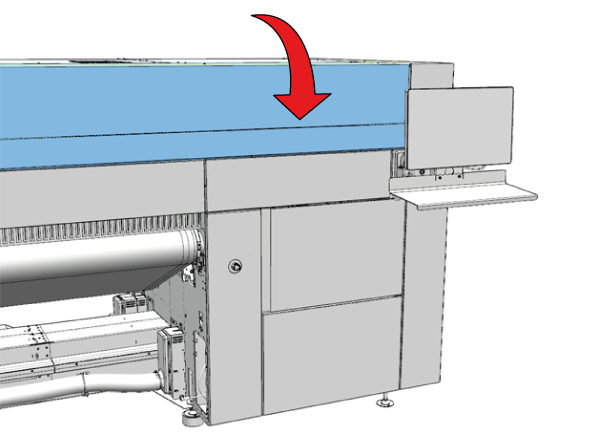
Close the top cover. |
|
|
5 |
On the user interface, click [Confirm] to finish the procedure. |