
You can load standard and custom media on your printer.
Before you load a roll on the printer, make sure your media is enabled.
For custom media you must create and enable the media type in WebTools Express. You can find the media type of the new roll on the sticker of the media box. For more information, see Create a custom media type.
Make sure the size is enabled in WebTools Express. For more information, see Configure the media sizes. If your media size is not present in the list, you can create a custom media size. For more information, see Create a custom media size.
 IMPORTANT
Do not use dented media rolls to prevent damage to the imaging devices.
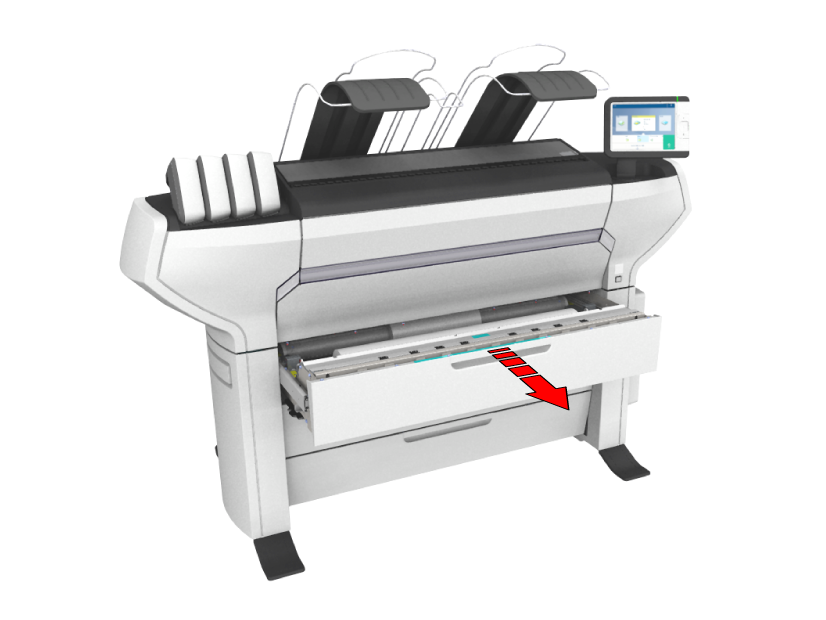
Do not open the media drawer during the print process.
Do not open more than one media drawer at the same time to prevent overbalance of the printer.
 CAUTION
Watch your fingers when you handle the media roll.
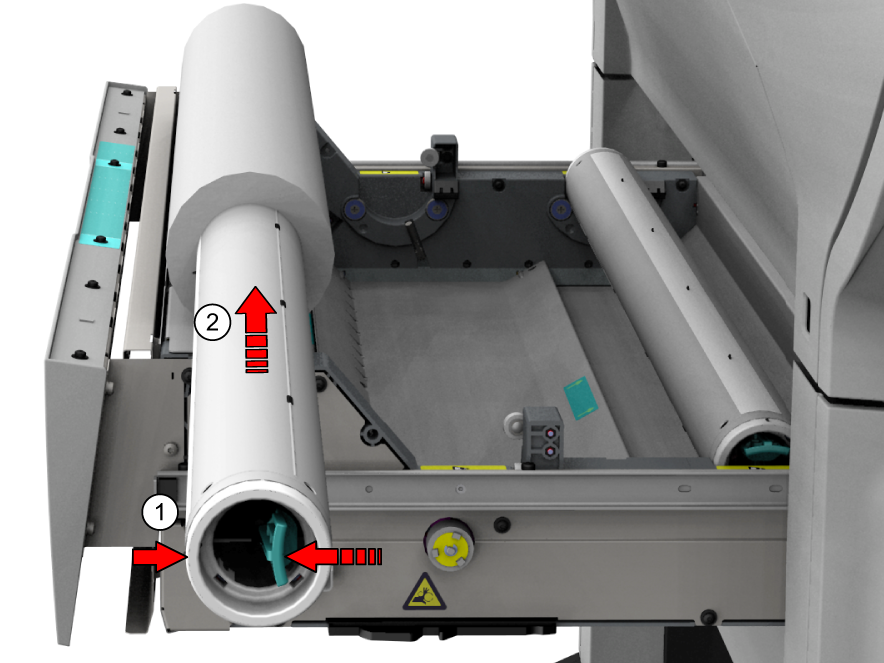
Slide (2) the roll holder into the right side of the core of the new media roll.
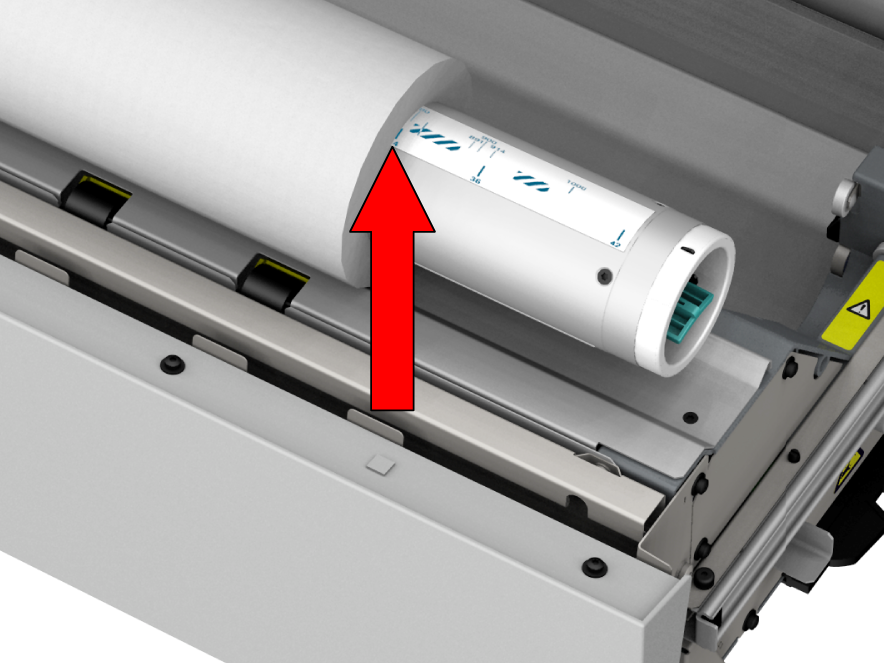
When the preferred size is indicated on the roll holder, place the roll on the corresponding media size with the help of the width indicator. Release the handle of the locking mechanism.
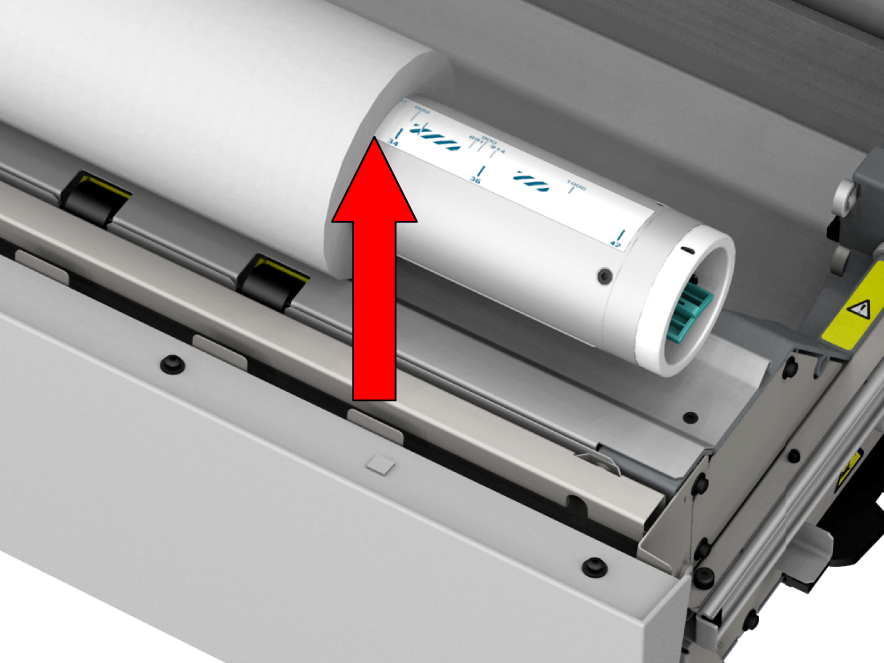
When the preferred size is not indicated on the roll holder, center the roll on the roll holder. Make sure that the roll, left and right, is not aligned on the striped areas. Release the handle of the locking mechanism.
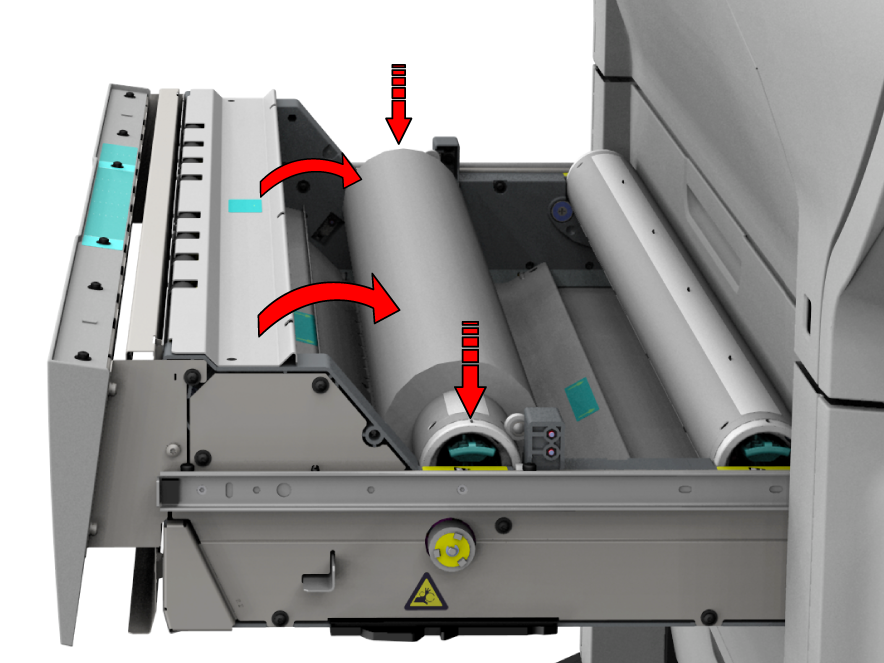
Use both hands (as indicated) to place the media roll in the media drawer.
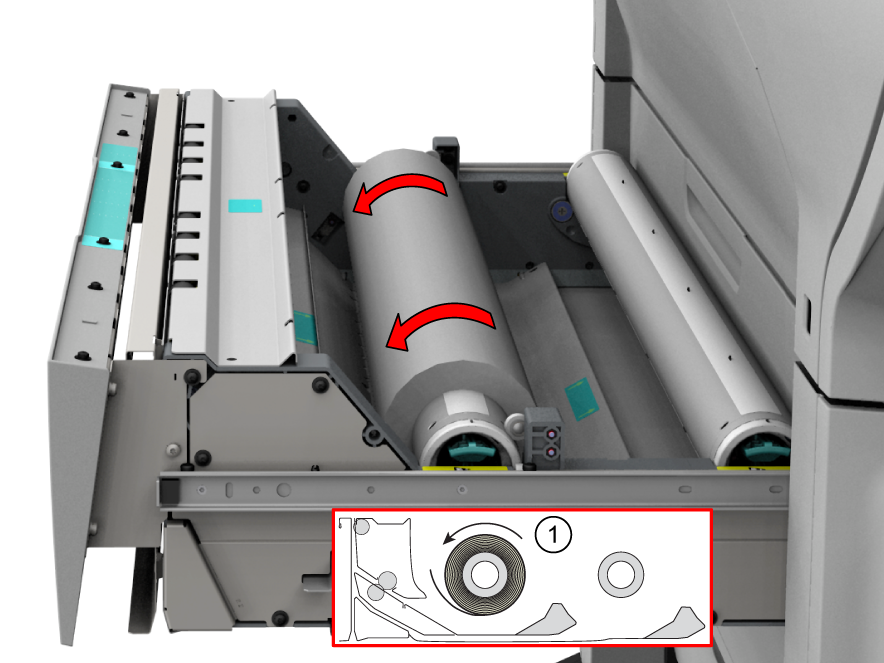
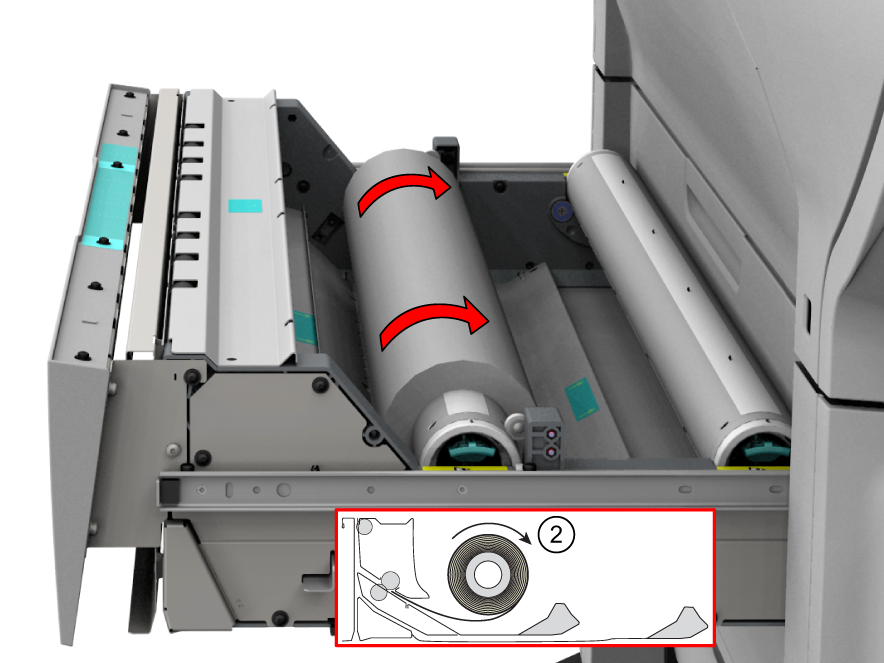
 NOTE
NOTE
Do not open the media drawer during loading.
Select the media type. The printer detects the correct size automatically. Choose whether you want a short, long, or no strip, and tap [OK].
NOTE
When you use a custom media type for the first time, the printer will perform the calibration automatically.
For the highest output quality, it is advised to always perform a media calibration when you load a new media type.
You can now print on the newly loaded media. For custom media, you can be requested to perform a manual cut. For more information, see Make a manual cut.