
The media edge guards ensure that the media is kept flat during printing. If the media edge guards are not positioned correctly, it is possible that they become polluted.
If you print on self-adhesive media, glue residue on the bottom of the media edge guards can cause damage to the edge guards.
If the media edge guards become polluted, you must clean them. 2 media guards are included in the standard configuration of the printer. You can install 2 extra media edge guards.
 CAUTION
Only clean the media edge guards when the printer is not printing.
 NOTE
NOTE
Be careful not to bend the media edge guards. Damaged media edge guards can affect the media.
Use Colorado XL-series prescribed:
Microflex gloves for handling ink
Lint free cloths
Cleaning liquid (IPA)
Scraper
Screwdriver (Torx 25)
CAUTION
Wear gloves when contact with ink or maintenance materials is possible. Gloves should always overlap sleeves. Follow the ink related Safety Data Sheets (SDS) guidelines carefully in order to ensure maximum safety.
|
1 |
Put on the Colorado XL-series approved gloves. |
|
|
2 |
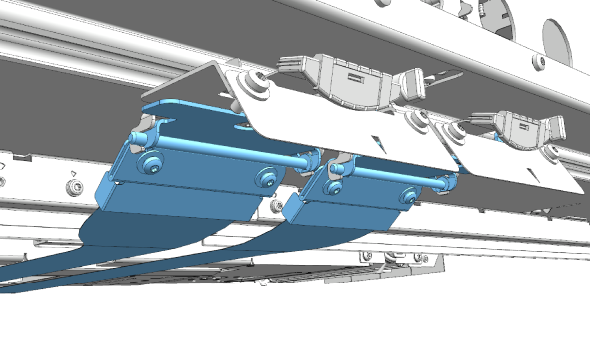
Go to the input side of the printer and locate the media edge guards. |
|
|
3 |
Remove the media edge guards from the printer. See Remove or attach the media edge guards. |
|
|
4 |
Place the media edge guards on a flat surface. |
|
|
5 |
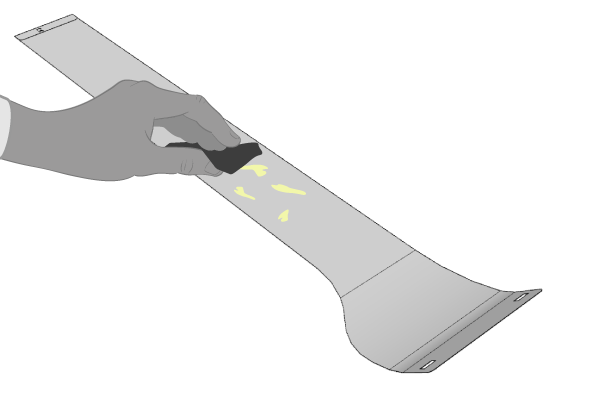
Dampen a lint-free cloth with cleaner IPA and clean any uncured UVgel or other pollution off the media edge guards. |
|
|
6 |
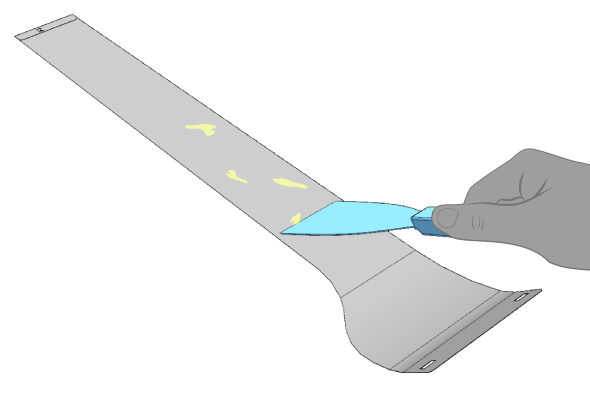
If any cured UVgel or glue residue is on the media edge guards, you must use a scraper to scrape it off. NOTE
Make sure to position the scraper flat on the media edge guard to prevent damage. |
|
|
7 |
Make sure both sides of each media edge guard are clean. |
|
|
8 |
Place the media edge guards back into the printer. See Remove or attach the media edge guards. |
|
|
10 |
Dispose the gloves and lint free cloths as chemical waste according to local regulations. |