
Before you can define media in the media catalog, you must add a substrate in the RIP. Substrates created in the RIP are then synchronized with the printer.
 NOTE
NOTE
Instructions relating to the RIP in this manual are based on ONYX.
|
1 |
Import or create a media profile in ONYX. See Manage media profiles in ONYX. |
|
|
2 |
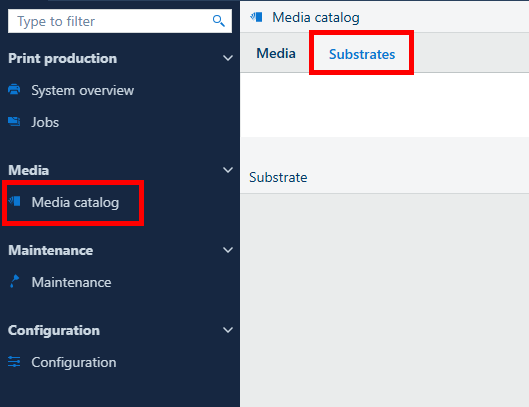
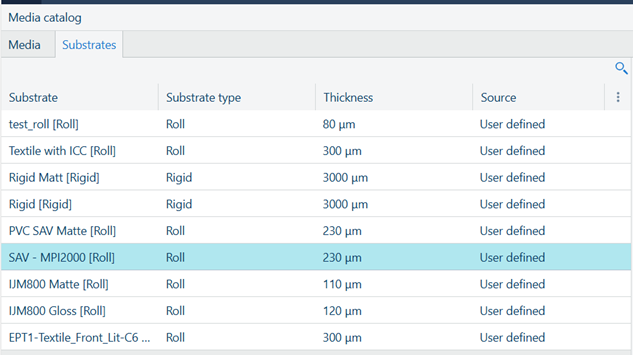
Check that all media profiles are synchronized with the printer. On the user interface, go to [Media],[Media catalog], then [Substrates]. Available substrates are displayed here. |
|
|
3 |
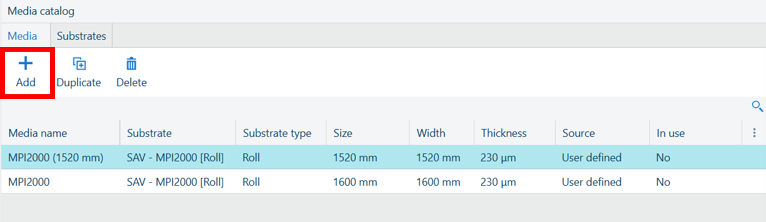
On the [Media] tab, click [Add]. NOTE
You can also click [duplicate] to copy an existing media, or click [Delete] to remove a media. |
|
|
4 |
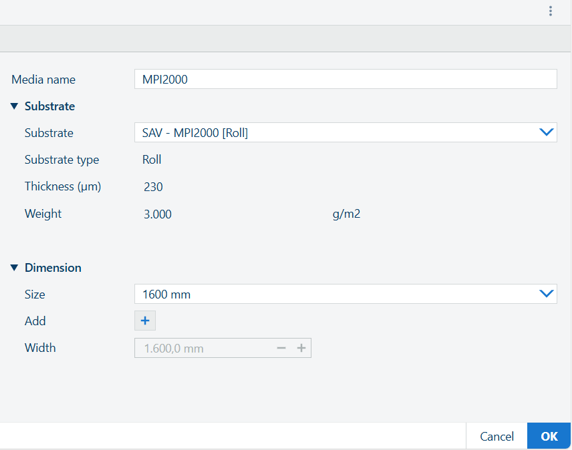
Define the following:
|
|
|
5 |
The media now appears in the list under the [Media] tab and can be used in a print job. |