
On the user interface you can access system information about the printer and activate your Windows installation manually or automatically.
You can access this information via .
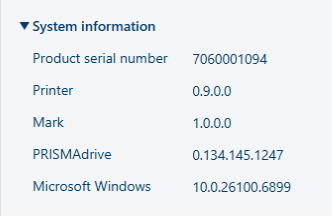
On the [About] page, under [System information], you can find information about the serial number of the printer, and the installed software versions of PRISMAdrive and Microsoft Windows.
The [About] page displays the activation status of your Windows installation.
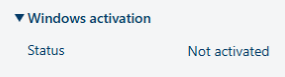
If the status is [Not activated], you can activate it automatically.
|
1 |
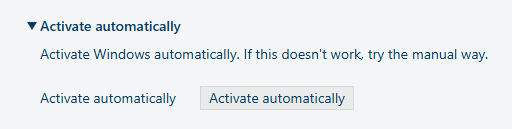
To activate Windows automatically, click on [Activate automatically]. |
|
|
2 |
Automatic activation starts. This can take a few moments. |

|
|
3 |
If automatic activation is successful, the status is now [Activated]. If automatic activation is not successful, activate Windows manually. |
|
1 |
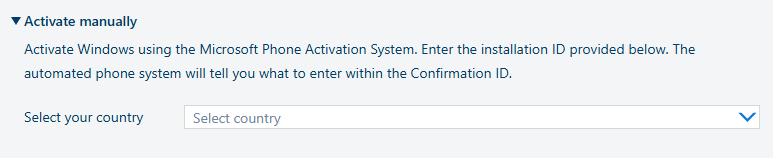
To activate Windows manually, go to [Activate maually]. |
|
|
2 |
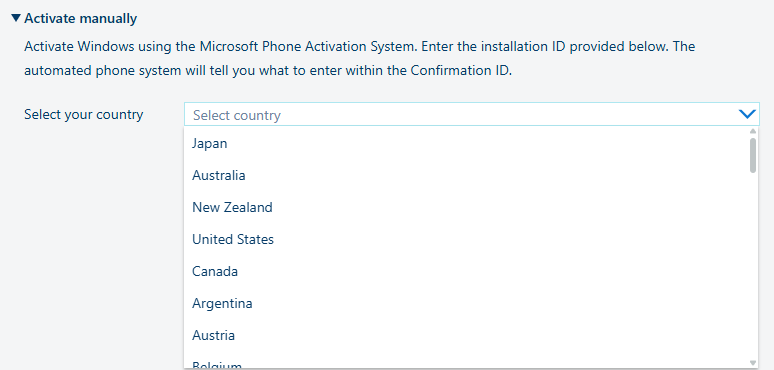
From the drop-down menu, select your country. |
|
|
3 |
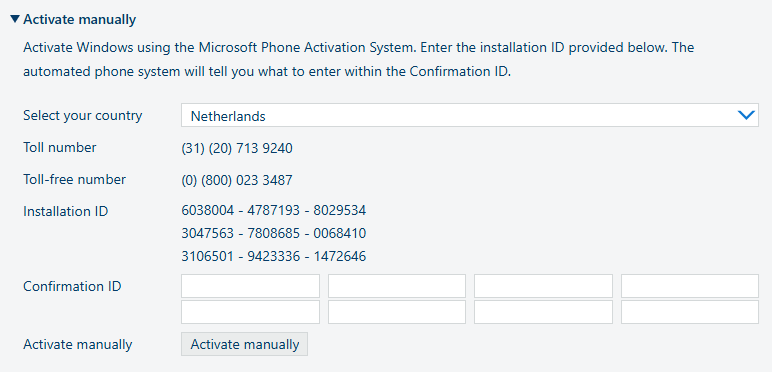
Call one of the phone numbers that is displayed for your country and enter the installation ID displayed on the user interface. You will receive a confirmation ID. Enter the ID in the [Confirmation ID] field and click on [Activate manually]. |
|
|
4 |
Activation starts. This can take a few moments. |
|
|
5 |
If automatic activation is successful, the status is now [Activated]. |