
When a file is selected, the application will offer a toolbar with one button for each possible action. The number and type of operations is variable.
The selected job in the list has a number of possible actions available. The number of actions depends on the state of the job.
|
Action |
Icon |
Description |
|---|---|---|
|
[Add files] |

|
Opens the operating system "pick file" dialogue and lets you add a file to the job.. |
|
[Delete] |

|
Deletes the selected file for the job. The application will request a confirmation before. This operation is irreversible. |
|
[Download the file] |

|
The file is downloaded to the local storage. |
|
[Preview the file] |

|
Opens the file in the [Preview] panel. The duration of ths operation is dependent on the file's size. |
|
[Replace the file] |

|
Opens the operating system "pick file" dialogue and replaces the existing file with another one. |
|
[Merge files] This button is disabled for jobs with a single attachment, as well as for files which did not yet pass the preflight stage. |

|
Joins together two or more attachments into a single one. The resulting attachment has to comply with the current limitations (number of pages and size) and replaces the merged files.  NOTE Composing and merging attachments can only be done with a valid "PRISMAprepare Go Composition" license. |
|
[Unmerge files] This button replaces the merge button when the selected attachment is a concatenated file. |

|
Discard the last merge operation and returns the original attachments to the job. |
|
[Revert to original] |

|
Discards any and all of the changes performed on the file, and replaces the current file with the original one. NOTE
This option is only available when the file was changed in the [Job Editor]. |
|
[Composition] |

|
Opens the selected file in the composition app. NOTE
Composing and merging attachments can only be done with a valid "PRISMAprepare Go Composition" license. |
|
[Job Editor] |

|
Opens the selected file in the [Job Editor]. |
|
[Unlock job] |

|
Discard any changes done on the file being currently edited by someone else. File can be edited after this operation. NOTE
This option is only available when [Job Editor] or the composing app was not closed correctly upon editing the file. |
|
[Send to printer] |

|
Opens the [Send to printer] dialog. |
NOTE
Both the composition app and the job editing app can be opened more than once, as long as different attachments are open.
When a PDF is open in any of the two editing apps, it is marked as
 . As a consequence, the [Composition] and the [Job Editor] buttons on the toolbar are disabled.
When the [Send to printer] button is pressed, this dialog opens.
You will have to select a value from the available ones before printing. Start by selecting the [Printer], since the rest of the settings are specific to each device.
|
ONYXdevice |
Other device |
|---|---|
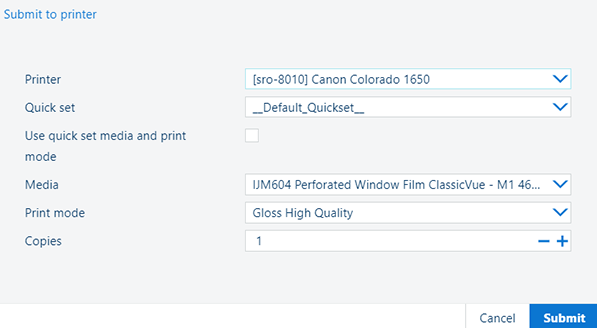 |
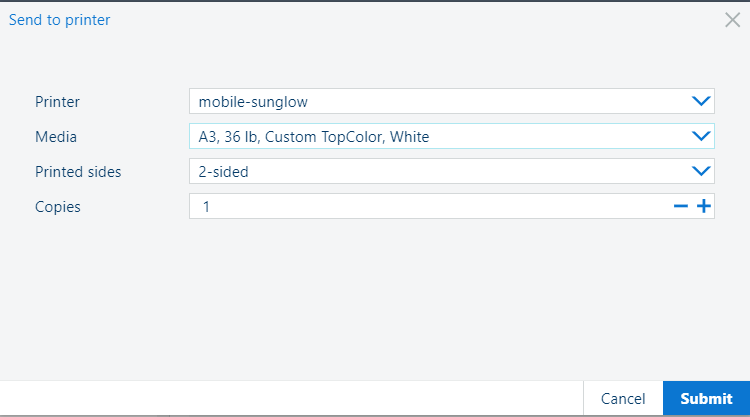 |
|
[Printer] - list with all the available printers |
[Printer] - list with all the available printers |
|
|
|
[Copies] - number of copies Default value is 1 |
[Copies] - number of copies Default value is 1 |
NOTE
The background of the [Submit] button changes color depending on the modifications performed on the file:
blue: no issues
The content of the attachment will be printed.
orange means the content of the file was changed in the job editor or the composing app.
NOTE
The [Send to printer] operation is not able to take such modifications into account.
The original, not modified version of the attachment will be printed.