
You can receive notifications regarding printer events and errors on the notification panel (in the notification center) and lock screen of the smartphone, without launching the PRISMAremote Monitoring app.
To receive notifications, it is necessary to open the notification settings screen of the app from the smartphone settings screen to configure the settings for receiving notifications.
 NOTE
NOTE
The available settings and the configuration method differ according to the model and operating system version of the smartphone.
When you allow notifications on the notification settings screen, you can select the method and location for receiving notifications.
NOTE
For an iPhone, you cannot enable or disable notifications by notification category.
When all notifications are enabled, notifications are displayed as follows.
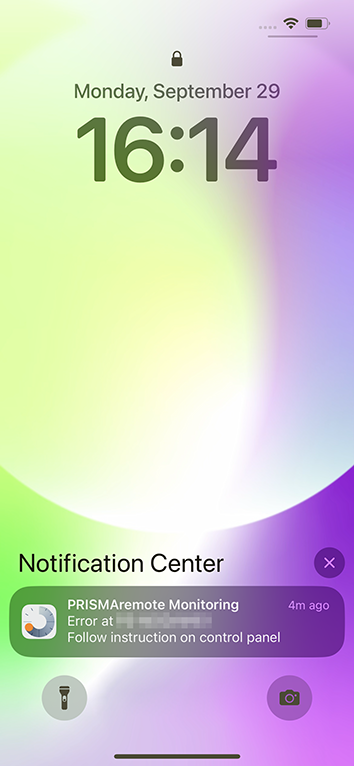 Show in notification center
Swipe the screen to check the notifications in the notification center. |
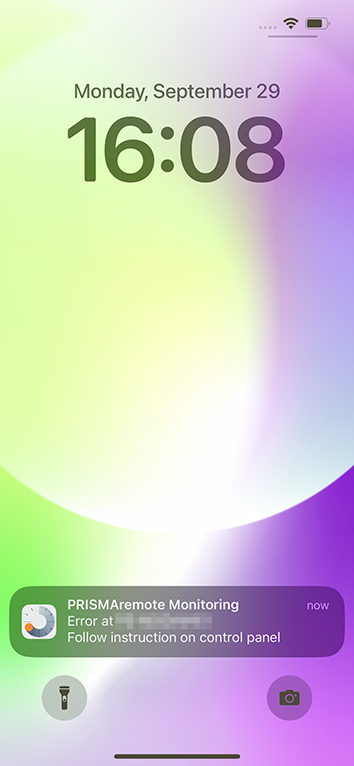 Show on lock screen
Press the home/side/top button to check the notifications on the lock screen. |
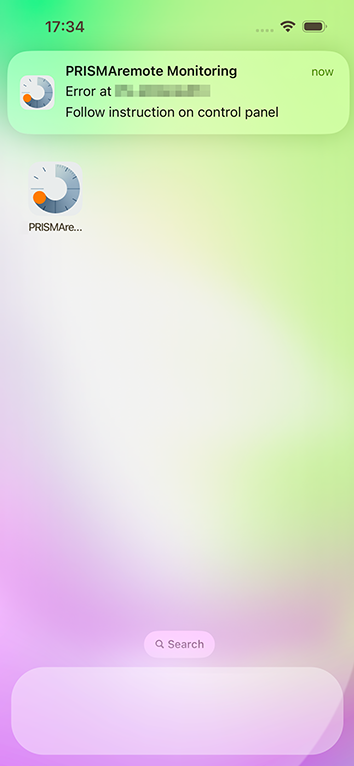 Displayed when using an iPhone
When using a smartphone, notifications are displayed on a banner. NOTE
A notification badge is not displayed on the icon, even when there is an unread notification. |
When [All PRISMAremote Monitoring notifications] is enabled on the notification settings screen, notifications are displayed.
NOTE
For an Android smartphone, you can also enable or disable notifications by notification category.
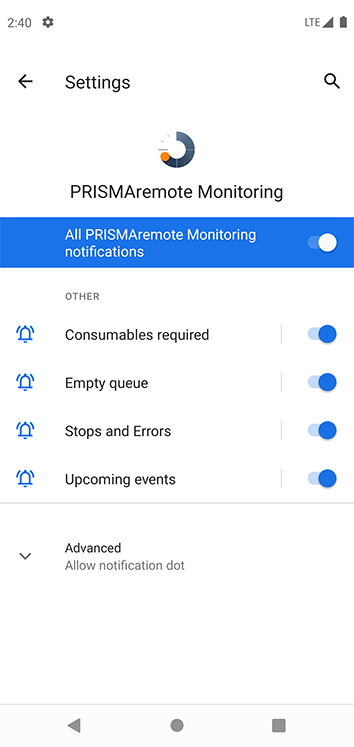 Notification settings screen (Android)
|
Example of displayed notification |
||
|---|---|---|
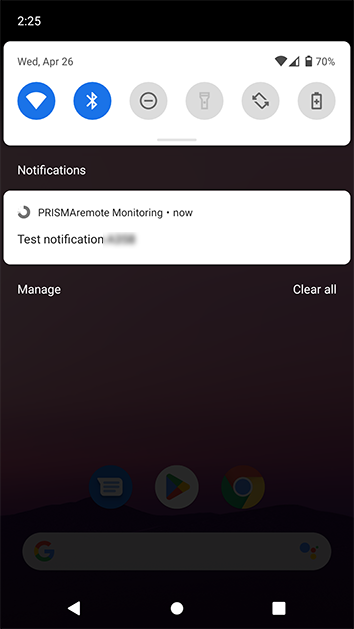 Notification displayed on notification panel
Swipe the screen to check the notifications on the notification panel. |
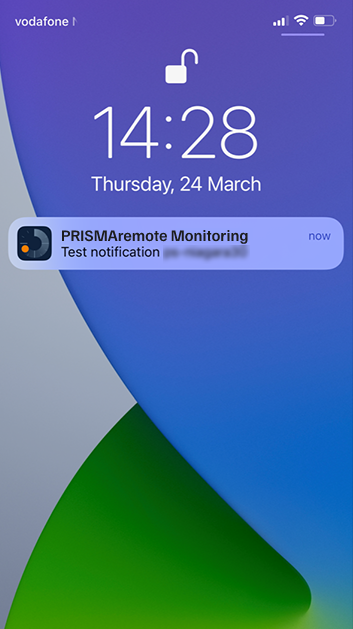 Show on lock screen
Press the sleep/cancel sleep button to check the notifications on the lock screen. |
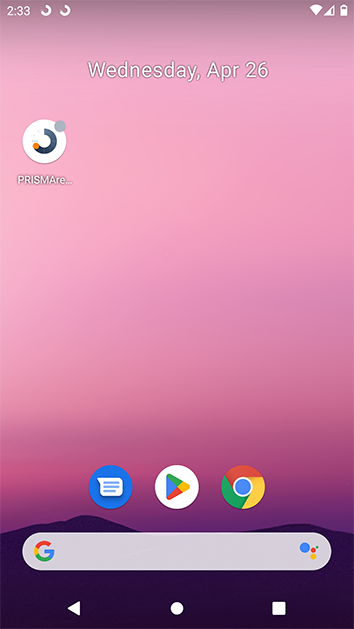 Displayed when using an Android smartphone
When a notification is received while using the smartphone, an icon is displayed in the notification bar on the top of the screen. NOTE
To display notifications in a pop-up, use the notification settings of Android. When there is an unread notification, the notification dot (notification badge) is displayed on the icon. |