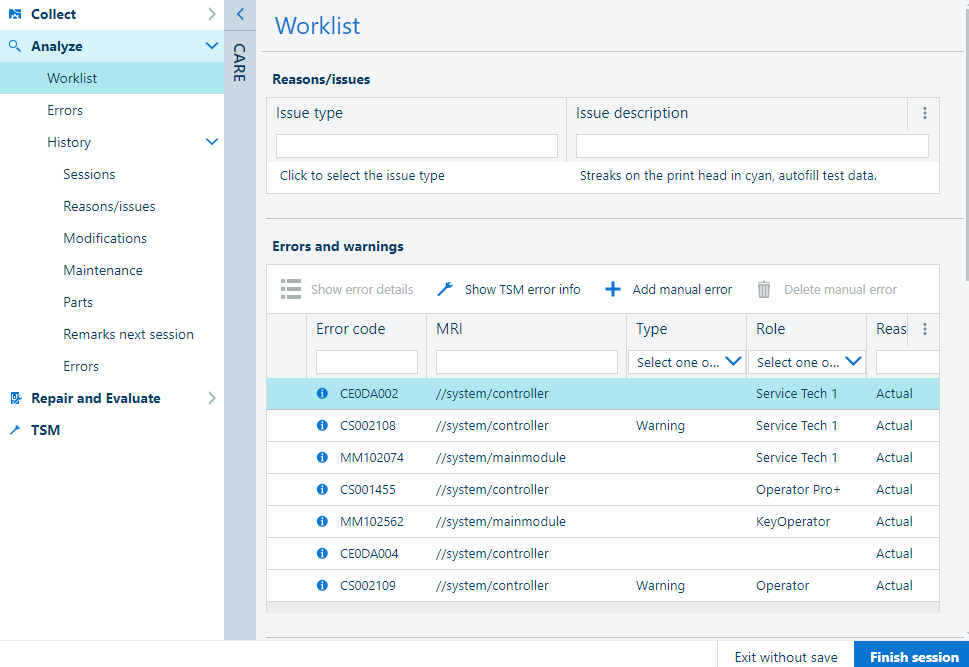
In the worklist you find all actions which ADAM detected as relevant for this service visit.
The toolbar offers a quick way of reaching the following functions:
 [Show error details]
Opens a dialog showing details for the selected error.
 [Show TSM error info]
Opens the TSM document that explains this error/warning.
 [Add manual error]
Lets you pick one or more errors/warnings as an action for the visit activities..
 [Delete manual error]
Lets you delete one of the manual errors.
Can be accessed from the button being displayed on the error line when hovering the mouse on the right-hand side of the selected element in the list.
This action is only available when the selected item in the worklist is a manual error.
|
Section |
Description |
|---|---|
|
[Sessions] |
A list with all the service visits/sessions is present in this section. |
|
[Reasons/issues] |
These are the reasons for the service visit that you filled in on the Collect screen. This must also include any customer complaints you received on site. |
|
[Modifications] |
This section shows the modifications that have not yet been implemented, and which are also shown on the worklist. Click an individual modification to see extra information. There can be a link to the TSM document that explains the implementation of the modification, for example parts that are needed for the maintenance action. 
|
|
[Maintenance] |
This section shows maintenance actions and product specific notifications that are relevant during this service visit. The maintenance action will indicate if 80% of the counter value or time is reached. If they are due (100%), they will be colored red. A bold line indicates a maintenance group. Click the line to see the list of maintenance items that belong to the group. 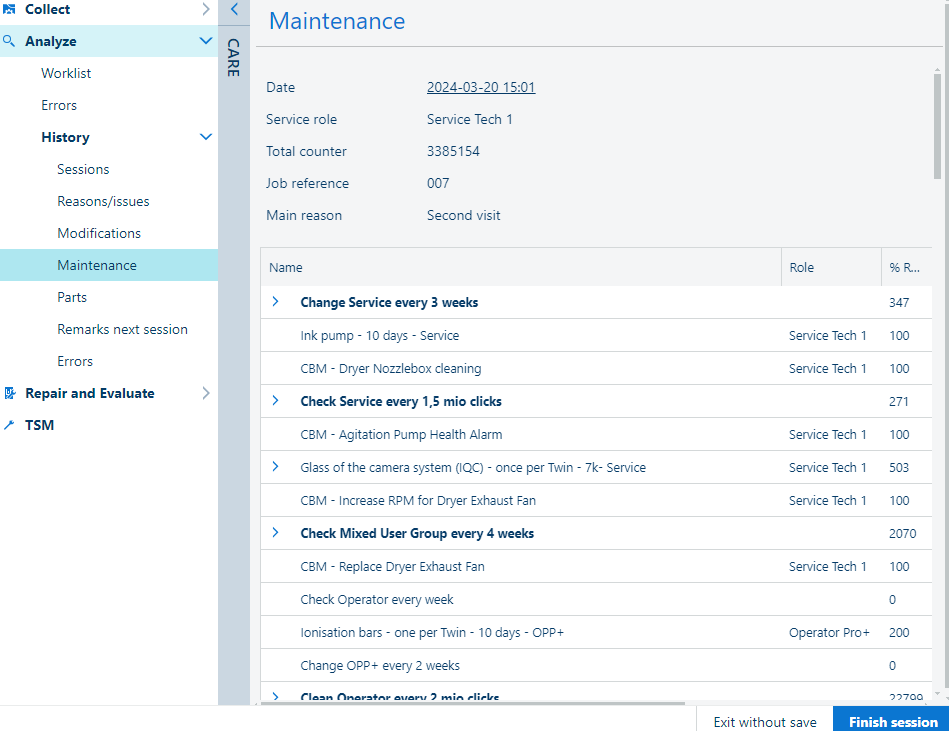
Click a maintenance line to show additional information about the action. |
|
[Remarks next session] |
Remarks that may be of use for a next service visit, are listed here, for example: an adjustment from this visit that needs a check during the next visit. |
|
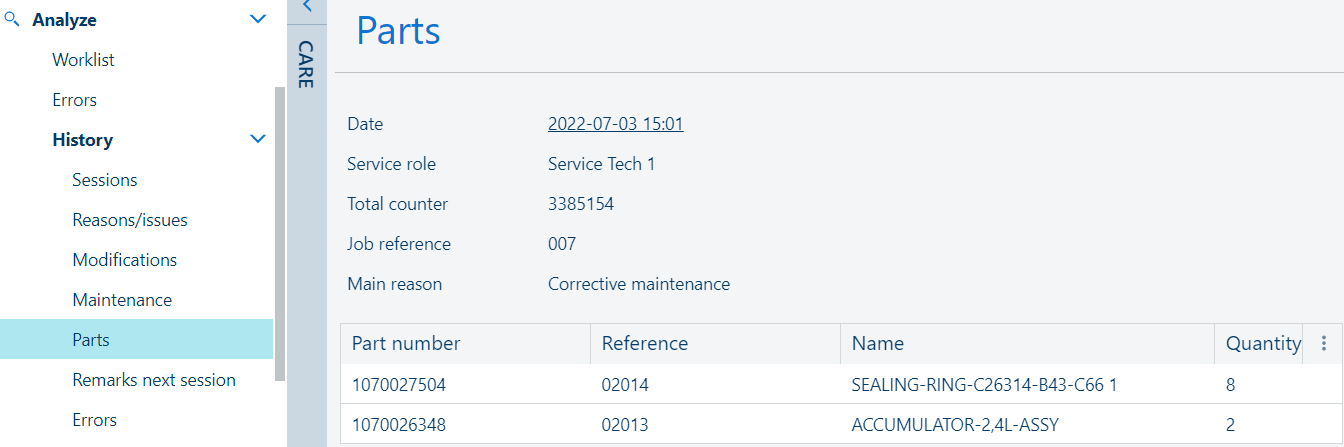
[Parts] |
A list of used parts (with their name, number and reference code) is presented.
|
|
Errors (and warnings) |
A list of relevant errors and warnings that occurred on this print system. ADAM only shows important errors and warnings. The following information is displayed:
Click "Show TSM error info" to open the TSM document that explains this error/warning. |
 NOTE
NOTE
When an item on the worklist shows a scheduled date, this means that the item was scheduled via the maintenance scheduler in PRISMAservice (On Remote Service) of the CPP backoffice. An agreement with the customer has been made to execute the maintenance item on a fixed date.
NOTE
A user logs in with a specific service role. By default, only items which are intended for the current service role are presented on the worklist. Product groups can choose to assign service activities to different service roles. To see service activities assigned to different roles than that of the current user, use the role selector (S1) in the top of the workspace:

You can select one of the existing errors/warnings and add it to the list of actions for the current visit.
Click the
[Add manual error] button to open the dialog.
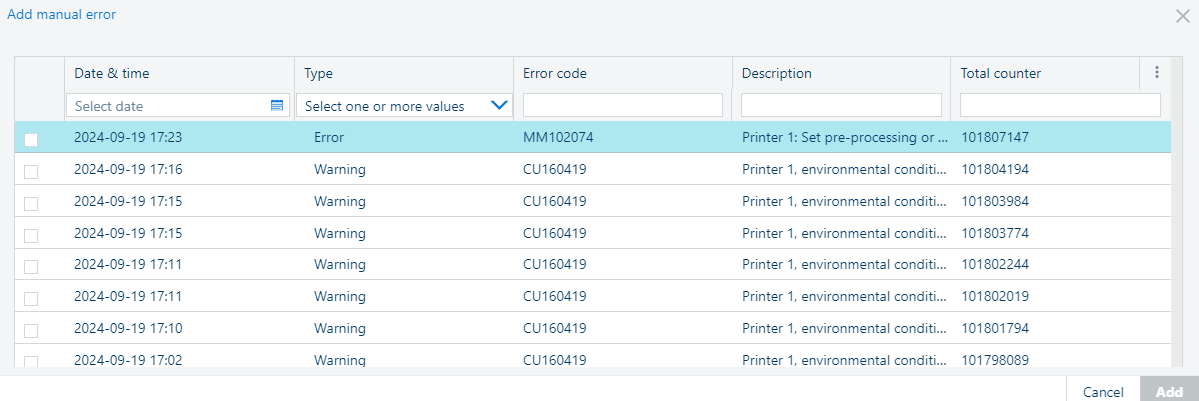
Find the ones you want to be reminded about, and tick the check-box.
A new line in the [Errors and warnings] list is added at the bottom, marked with a red dot.
When trying to finish your visit with save, you will have to solve this item.
Select such an entry and
[Delete manual error] from the main list.