
After you submit a job from the RIP, it appears in [Waiting jobs]. Jobs in [Waiting jobs] are temporarily held until they are ready to be printed.
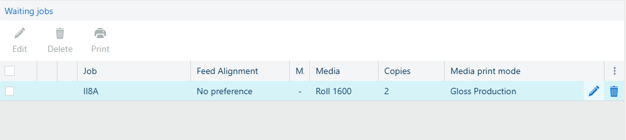
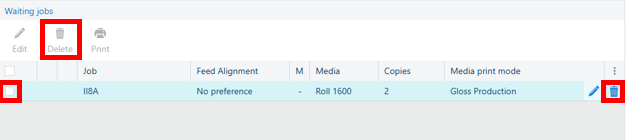
In [Waiting jobs], jobs are listed along with information about feed alignment, selected media, number of copies and media print mode.
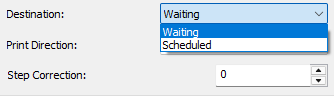
When you submit a job from the RIP, in the [Destination] setting you can also choose to directly send the job to the print queue.
Functionality of [Waiting jobs]:
|
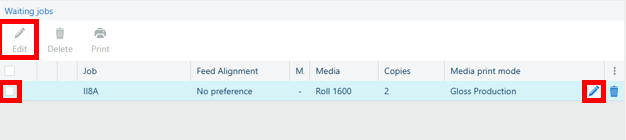
You can edit a job. Select a job and click [Edit], or click the pencil icon on the right-hand side next to the job. You can select multiple jobs at the same time. |
|
|
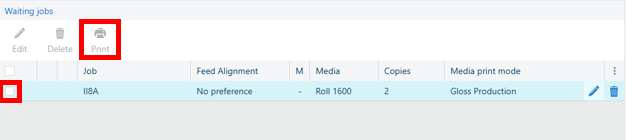
You can move a waiting job to the print queue from where it is printed. Select a job and click [Print]. You can select multiple jobs at the same time. |
|
|
You can delete a job before it is sent to the print queue. Select a job and click [Delete], or click the bin icon on the right-hand side next to the job. You can select multiple jobs at the same time. |
|
|
You can change the order of jobs. Click and drag a job to the desired position. |
|
|
If a job cannot be printed because of an error, you can send it back to the waiting jobs list until the error is resolved. |