
When you tap the Scan tile on the multi-touch user panel, you can make your own settings.
Apart from the preset tiles, you can select the advanced settings under [Show all settings]. These settings are used for extended print jobs. The following table gives an overview and a short description of the available settings on the printer. You can find a detailed description of each setting in WebTools Express.
|
Setting |
Settings values |
Function |
|---|---|---|
|
[Media type] |
Any type List of media types |
The type of media you use. |
|
[Media size] |
Any size List of media sizes |
The size of media you use. |
|
[Media source] |
[Automatic] 'Roll 1 to 6' (description of media type and media size loaded on the specific roll) |
Define the media feed to copy or print on. When you select [Auto] the printer automatically selects the media roll. 
|
|
Setting |
Settings values |
Function |
|---|---|---|
|
[Cut size] |
[Cut method]:
|
When set to [Synchro], the print is cut dependent of the image size. When set to [Standard], the print is cut to a standard media size. When set to [Custom], you must enter the sizes manually. 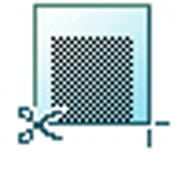
|
|
[Custom cut length] |
Cuts the print at the defined length. From 210 to 20,000 mm, or 8.3 to 7874 inches. |
|
|
[Add a leading strip] |
Adds a blank strip at the beginning of the output. From 0 to 400 mm, or 0 to 16 inches. 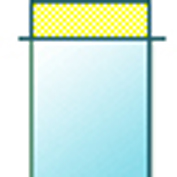
|
|
|
[Add a trailing strip] |
Adds a blank strip at the end of the output. From 0 to 400 mm, or 0 to 16 inches. 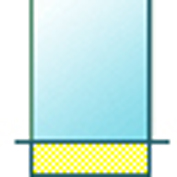
|
|
|
[Rotation] |
[0°] [90°] [180°] [270°] [Short edge first] [Long edge first] [Auto rotate media saving] [Auto rotate media saving with additional 180° rotation] |
Rotates the image counterclockwise. Select [Auto rotate media saving] to use the media in the most efficient way. |
|
[Positioning] |
[Alignment]:
|
[Aligns the image on the sheet.] 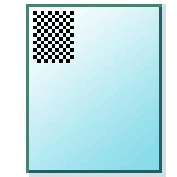
|
|
[Horizontal shift] |
[Shifts the image in the horizontal direction (after alignment to one of the positions given in 'Alignment').] From - 1067 mm to 1067 mm, or - 42 to 42 inches. 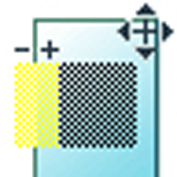
|
|
|
[Vertical shift] |
[Shifts the image in the vertical direction (after alignment to one of positions given in "Alignment").] From - 1219 mm to 1219 mm, or - 48 to 48 inches. 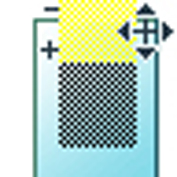
|
|
|
[Scale] |
[1:1] |
Scales the image to the original size. |
|
[To media size] |
Scales to the selected media width.  NOTE NOTE
You can only use this setting, when a specific media roll is selected. |
|
|
[To standard size] |
Scales the image to fit the media size you select from a list. 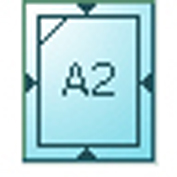
|
|
|
[Custom] |
Scales the image to a custom percentage. 10 - 1000% 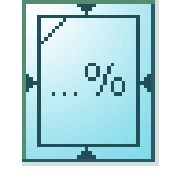
|
|
Setting |
Settings values |
Function |
|---|---|---|
|
[Print quality] |
|
Define the print quality of your output.
In case of a fast and standard mode, the fast mode is faster and uses less toner than the standard mode, while the standard mode output has a higher toner coverage. |
|
[Color mode] |
[Color] [Grayscale] |
Define the default output in color or grayscale. |
|
[Mirror] |
[On] [Off] |
[When 'On', the image is mirrored along the vertical axis (the media transport direction).] Set to [On] for strongly curled transparent originals that have to be fed upside down in the scanner. Or for (dark) transparent originals that have the information printed on the back. 
|
|
Setting |
Settings values |
Function |
|---|---|---|
|
[Delivery] |
[Top Delivery Tray] |
Location on top of the printer that deposits the sheet face-down. NOTE
Not all media types can be delivered to the [Top Delivery Tray]. |
|
[Back output] or [Fold]. |
Select the [Back output] to deliver your output face-up, at the back of the printer. Select the folding device when it is configured, and you want to fold your output. |
|
|
[Fold template] |
When a folding device is configured, you can select the preferred fold template, to fold with predefined settings. |