
When you launch PRISMAremote Monitoring and log in, the [Events] screen is displayed. You can touch the icons on the bottom of the screen to switch screens.
[ ] icon: Switches to the [Events] screen.Events Screen
When an event has stopped due to an error, a red notification badge is displayed on the top right of the [] icon.
[ ] icon: Switches to the [Printers] screen.
Printers Screen
] icon: Switches to the [Printers] screen.
Printers Screen
When a printer has stopped due to an error, a red notification badge is displayed on the top right of the [] icon.
[ ] icon: Switches to the [Configuration] screen.Configuration Screen
You can display the notification settings screen of the smartphone from the [Configuration] screen.
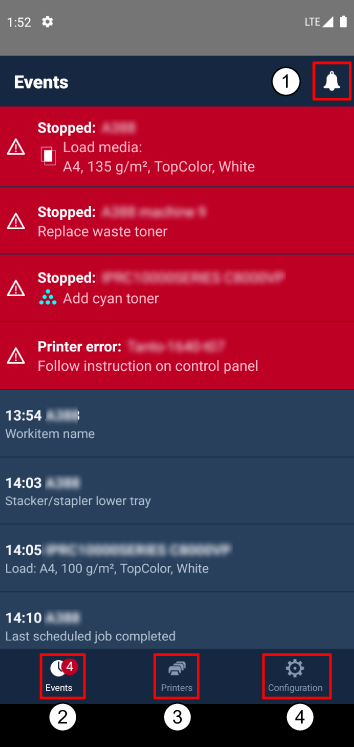 [Events] screen
This section describes how to view each screen.